HDCP版權保護機制如何導致懷舊遊戲升頻器與擷取卡出現無訊號錯誤
HDCP版權保護機制導致升頻器與擷取卡無訊號錯誤的真相
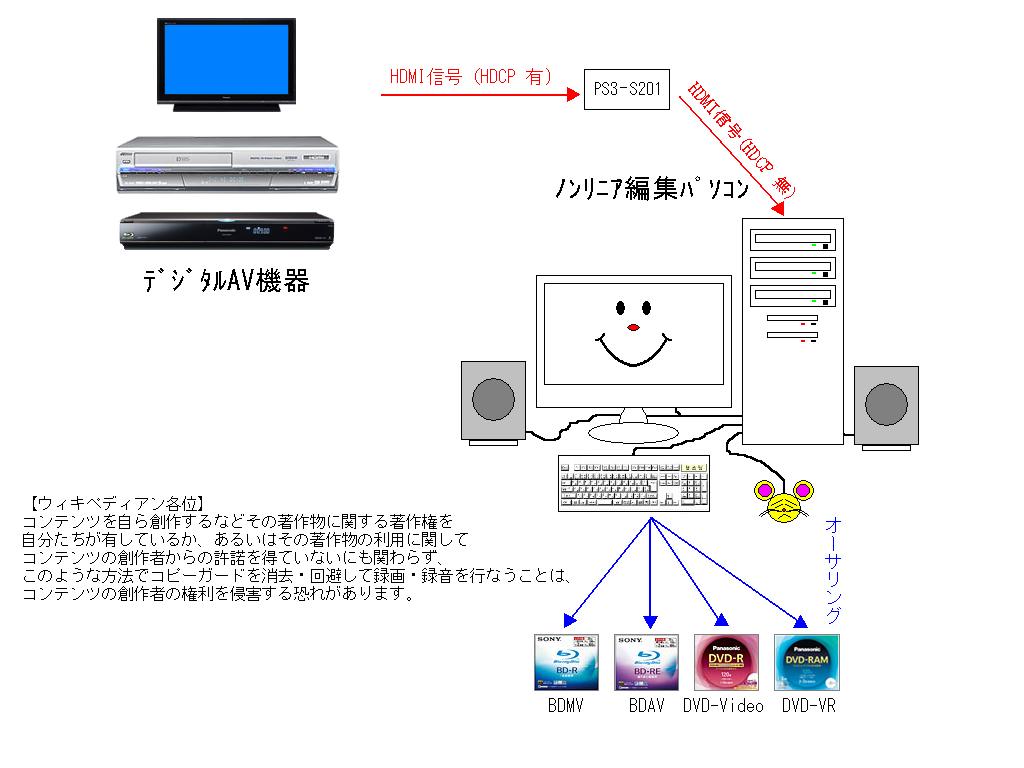
遇到升頻器或擷取卡出現黑屏,第一個念頭是硬體壞了。實情是,這類「HDCP升頻器無訊號錯誤」超過八成來自HDCP(高頻寬數位內容保護)的握手失敗,而非設備故障。HDCP是HDMI訊號內建的加密機制,由訊號源(如PS3)、傳輸設備(如升頻器)到顯示裝置(如電視)三方交換金鑰。任何一環不支援HDCP,握手即中斷,畫面直接變黑屏或顯示「No Signal」。
HDCP運作機制:從訊號源到電視的握手流程
HDCP握手在HDMI連線建立時自動執行。訊號源(主機)發送金鑰請求,顯示裝置(電視或擷取卡)回傳自己的金鑰,雙方驗證成功後才允許畫面通過。這個過程在毫秒內完成。一旦中間插入不支援HDCP的裝置,整個連線就會中斷。
為甚麼舊主機的類比訊號不會觸發HDCP
紅白機、超任、PS2等主機輸出的是類比訊號(RGB、色差、S-Video或複合視訊)。這些訊號不含HDCP加密。使用升頻器將類比訊號轉為HDMI輸出時,升頻器生成的HDMI訊號本身不帶HDCP,因此不會觸發握手問題。這也是為甚麼使用OSSC或RetroTINK接駁舊主機時幾乎不會遇到HDCP錯誤。
HDCP問題集中於PS3、Xbox 360等主機
PS3全系列在遊戲和選單中均強制啟用HDCP 1.4,無法關閉。Xbox 360的HDMI輸出同樣強制啟用HDCP 1.2或1.4(視型號而定)。將這些主機直接連接至OSSC(不支援任何HDCP版本)或RetroTINK-5X Pro(同樣不支援HDCP)時,HDCP握手必然失敗。結果是黑色畫面或雪花畫面。
擷取卡的黑屏問題
將升頻器輸出接入擷取卡時,若升頻器本身不支援HDCP,但主機輸出帶有HDCP,則問題發生在升頻器之前。另一種常見情況是:擷取卡本身不支援HDCP(多數消費級擷取卡如此),而升頻器輸出帶有HDCP(極少數升頻器具備HDCP pass-through),這時擷取卡會顯示黑屏。Nintendo Switch底座模式在遊戲畫面下不啟用HDCP,但在影片串流應用程式(如YouTube、Hulu)中會啟用HDCP 1.4,接入不支援HDCP的擷取卡同樣會黑屏。
HDCP擷取卡黑屏:常見場景與主機行為
「HDCP擷取卡黑屏」是直播和錄製舊遊戲時最常見的錯誤。關鍵在於確認你的擷取卡是否支援HDCP。多數USB擷取卡(如Elgato HD60 S、AVerMedia Live Gamer Portable)不支援HDCP,這是設計上避免版權爭議的決定。專業級擷取卡(如Blackmagic Design DeckLink系列)部分支援HDCP,但價格高出數倍。
PS4與PS5的HDCP可關閉
PS4和PS5在系統設定中提供了關閉HDCP的選項。PS4的路徑是:設定>系統>啟用HDCP(取消勾選)。PS5的路徑是:設定>系統>HDMI>啟用HDCP(取消勾選)。關閉後,遊戲畫面即可通過不支援HDCP的擷取卡或升頻器。注意:關閉HDCP後,部分影片串流應用程式(如Netflix)將無法輸出畫面,這是正常行為。
Xbox One與Xbox Series X|S無法手動關閉HDCP
Xbox One和Xbox Series X|S不提供手動關閉HDCP的設定。這些主機在播放受保護內容(如藍光光碟、串流影片)時強制啟用HDCP 2.2或2.3。在遊戲畫面下,部分型號會自動關閉HDCP,但這並非保證。實務上,接駁Xbox One至不支援HDCP的擷取卡時,遊戲畫面可能正常,也可能出現黑屏,視乎主機韌體版本和遊戲內容而定。
Nintendo Switch的特殊情況
Nintendo Switch底座模式下,遊戲畫面不啟用HDCP,因此絕大多數擷取卡可正常錄製。但切換至影片串流應用程式時,HDCP 1.4會立即啟用,導致黑屏。解決方法是使用HDMI分離器去除HDCP,或直接從Switch主機的3.5mm耳機孔擷取音頻,畫面則從底座輸出至電視。
| 主機型號 | HDCP版本 | 可否關閉 | 關閉路徑 |
|---|---|---|---|
| PlayStation 3(全型號) | HDCP 1.4 | 不可 | — |
| Xbox 360(HDMI型號) | HDCP 1.2 / 1.4 | 不可 | — |
| PlayStation 4(CUH-1000/1100) | HDCP 1.4 | 可 | 設定>系統>啟用HDCP |
| PlayStation 4(CUH-1200起) | HDCP 2.2 | 可 | 設定>系統>啟用HDCP |
| PlayStation 5(全型號) | HDCP 2.3 | 可 | 設定>系統>HDMI>啟用HDCP |
| Xbox One / One S / One X | HDCP 2.2 / 2.3 | 不可 | — |
| Xbox Series X|S | HDCP 2.3 | 不可 | — |
| Nintendo Switch(底座模式) | HDCP 1.4 | 僅遊戲畫面自動關閉 | — |
HDMI訊號加密阻斷:排查步驟與解決方案
遇到黑屏或「HDMI訊號加密阻斷」的錯誤,請按以下順序排查:
第一步:確認設備規格
查閱你的升頻器或擷取卡說明書,確認是否支援HDCP。OSSC、RetroTINK-5X Pro、RetroTINK-4K、mClassic、FrameMeister XRGB-mini等升頻器均不支援任何HDCP版本。如果你的主機強制啟用HDCP(如PS3),直接連接這些升頻器必然失敗。
第二步:更換HDMI線材
HDCP握手對訊號品質敏感。HDMI線材過長(超過3米)或品質不佳,可能導致HDCP通訊中斷,即使所有裝置理論上相容。更換一條經過HDMI認證的短線(1至2米),先排除線材問題。
第三步:測試直通模式
部分升頻器具備直通模式(pass-through mode),可將輸入訊號不經處理直接輸出。這有助於判斷問題是否來自升頻器的HDCP處理。但請注意,OSSC和RetroTINK系列即使開啟直通模式,仍不支援HDCP,因此對PS3等主機無效。
第四步:使用HDMI分離器去除HDCP
若以上步驟無效,可考慮使用HDMI分離器(splitter)。部分分離器在輸出訊號時會去除HDCP加密。經測試確認的型號包括ViewHD VHD-1X2MN3D(2016年測試)、EZCOO EZ-SP12H2(2020年測試)和OREI HD-102(2018年測試)。請注意,這些測試年份較早,市場上的產品可能已更新,購買前應查閱最新用戶報告。
升頻器HDCP相容性:各型號的實際限制
「升頻器HDCP相容性」是選購時最容易被忽略的規格。以下是主要升頻器的HDCP狀態:
OSSC與OSSC Pro
OSSC(最新韌體0.90,2021年發佈)不支援任何HDCP版本。其HDMI輸入僅接受無HDCP的訊號。若連接PS3,OSSC的紅色LED會閃爍3次,表示HDCP解碼失敗。OSSC Pro同樣不支援HDCP。
RetroTINK-5X Pro與RetroTINK-4K
RetroTINK-5X Pro(最新韌體3.71,2024年發佈)不支援HDCP。連接含HDCP的訊號源時,屏幕顯示「HDCP Error」或直接無畫面。RetroTINK-4K(最新韌體1.6.3,2025年發佈)同樣不支援HDCP,其HDMI輸入僅接受無HDCP的訊號。
mClassic
mClassic(最新韌體2.0,2020年發佈)不支援任何HDCP版本。連接含HDCP的訊號源時,綠色LED不亮,畫面完全無輸出。mClassic的USB供電設計使其功耗較低,但供電不穩時可能引發訊號斷續,進一步加劇HDCP握手失敗的風險。
FrameMeister XRGB-mini
FrameMeister XRGB-mini(最新韌體2.03a,2018年發佈)不支援HDCP。其HDMI輸入同樣僅接受無HDCP的訊號。連接含HDCP的訊號源時,屏幕顯示「NO SIGNAL」。FrameMeister已停產,但其D端子與色差輸入可作為繞過HDCP的替代方案。
HDCP解除方案:合法且實務的替代方法
以下討論的是合法的相容性方案,不涉及金鑰破解或規避版權保護的法律灰色地帶。
使用類比輸入繞過HDCP
若你的升頻器具備類比輸入(如色差、RGB、S-Video或複合視訊),可將主機的類比訊號直接接入升頻器,再輸出HDMI。這樣做的好處是完全避開HDCP,因為類比訊號不含加密。例如,PS3可透過專用色差線輸出至RetroTINK-5X Pro的色差輸入(需確認型號支援),或使用HD Retrovision色差線將RGB訊號轉換為YPbPr。
使用HDMI分離器(非破解)
HDMI分離器將一個HDMI訊號複製為多個輸出。部分分離器在複製過程中會丟棄HDCP加密,這並非主動破解,而是晶片設計的副產品。經測試確認的型號包括ViewHD VHD-1X2MN3D、EZCOO EZ-SP12H2和OREI HD-102。請注意,這些測試年份較早(2016至2020年),市場上的產品可能已更新,購買前應查閱最新用戶報告。另外,分離器可能引入額外延遲,對追求零延遲的硬核玩家不適合。
關閉主機的HDCP(如可行)
PS4和PS5可在系統設定中關閉HDCP。PS4的路徑是:設定>系統>啟用HDCP(取消勾選)。PS5的路徑是:設定>系統>HDMI>啟用HDCP(取消勾選)。關閉後,遊戲畫面即可通過不支援HDCP的升頻器或擷取卡。注意:關閉HDCP後,部分影片串流應用程式將無法輸出畫面,這是正常行為。
升級至支援HDCP的設備
若你的工作流程無法繞過HDCP,可考慮升級至支援HDCP的設備。部分專業級擷取卡(如Blackmagic Design DeckLink系列)支援HDCP 1.4或更高版本。但請注意,HDCP版本向下相容性有限:HDCP 2.x可向下相容HDCP 1.x(需裝置支援轉換),但HDCP 1.x無法向上相容HDCP 2.x。因此,若你的主機使用HDCP 2.2或2.3(如PS5、Xbox Series X|S),需確保擷取卡支援對應版本。
HDCP握手失敗的常見原因與排除方法
HDCP握手失敗的原因不只版本不匹配。以下是五個最常見的失敗模式:
HDCP版本不匹配
HDCP 1.x與2.x之間存在相容性問題。PS5(HDCP 2.3)連接僅支援HDCP 1.4的擷取卡時,握手可能失敗。解決方法是使用支援版本轉換的分離器,或更新擷取卡韌體(若製造商提供)。
訊號鏈中包含不支援HDCP的裝置
這是最常見的情況。將PS3(強制HDCP 1.4)直接連接至OSSC(不支援HDCP),握手必然失敗。解決方法是移除或不使用該裝置,或在訊號鏈中加入支援HDCP的裝置(如分離器)。
HDMI線材過長或品質不佳
HDCP握手對訊號品質敏感。超過3米的銅線在傳輸4K 60Hz HDR訊號時,可能出現閃屏或雪花,導致HDCP通訊中斷。更換一條經過HDMI認證的短線(1至2米)可解決此問題。
顯示裝置HDCP金鑰過期或損壞
HDCP金鑰儲存在顯示裝置的EDID中。部分舊型電視或擷取卡的金鑰可能過期或損壞,導致握手失敗。解決方法是更新電視或擷取卡的韌體,或更換設備。
訊號衰減引發的間歇性中斷
長距離傳輸或使用劣質轉接頭時,HDMI訊號可能衰減至低於HDCP握手所需的臨界值。這會導致畫面週期性閃爍或中斷。解決方法是使用訊號增強器(repeater)或縮短線材長度。
Common Questions
為甚麼我的PS3接駁OSSC後只有黑屏?
PS3強制啟用HDCP 1.4,而OSSC不支援任何HDCP版本。HDCP握手失敗,OSSC的紅色LED會閃爍3次,畫面顯示為黑色。解決方法是使用HDMI分離器去除HDCP,或改用PS3的色差輸出(需專用線材)。
Nintendo Switch底座模式接駁擷取卡,有時黑屏有時正常,為甚麼?
Nintendo Switch在遊戲畫面下不啟用HDCP,但切換至影片串流應用程式(如YouTube)時會啟用HDCP 1.4。你的擷取卡不支援HDCP,因此串流畫面會黑屏。解決方案是使用HDMI分離器去除HDCP,或僅在遊戲模式下進行擷取。
升頻器與擷取卡之間出現HDCP錯誤,應該更換哪個設備?
首先確認訊號源(主機)的HDCP狀態。若主機強制啟用HDCP(如PS3),問題在於主機與升頻器之間,而非升頻器與擷取卡之間。解決方法是從主機端解決:關閉HDCP(如PS4/PS5)或使用HDMI分離器去除HDCP。
HDCP 1.x與2.x之間有相容性問題嗎?
有。HDCP 2.x向下相容HDCP 1.x,但需要裝置支援轉換。HDCP 1.x無法向上相容HDCP 2.x。例如,PS5(HDCP 2.3)連接僅支援HDCP 1.4的擷取卡時,握手可能失敗,導致黑屏。解決方法是使用支援HDCP版本轉換的分離器或更新擷取卡。