Connecting an Original Xbox and Xbox 360 for the Best Deinterlacing on a Modern Display
Get the best deinterlacing for your Original Xbox and Xbox 360 by choosing the right cable and scaler to eliminate flicker and chroma artifacts.
Original Xbox and Xbox 360 Component vs HDMI Deinterlacing Guide
To get clean deinterlacing on a modern screen, you need a signal chain that treats each console honestly. The original box tops out at 1080i over component, and its library splits between 480i and 480p native renders, with a few 720p and 1080i titles. The 360 outputs up to 1080p over HDMI 1.2, but many games render internally at sub-720p and upscale. The failure mode is universal: a TV's cheap scaler sees 480i and applies bob deinterlacing, which shimmers on motion. Worse, a generic HDMI converter treats 240p as 480i and destroys the image. The fix is a lag-free scaler between the console and the screen. Which scaler depends on which console's games you play more.
Run the Original Xbox's component cable into a RetroTINK 5X-Pro or an OSSC. The 360 can use HDMI, but you still need a scaler because the 360's own scaling to 1080p is soft and adds lag. The RetroTINK 5X-Pro accepts component and HDMI, applies motion-adaptive deinterlacing to 480i, and outputs up to 1440p. The OSSC line-multiplies 480i to 960p with bob deinterlacing, which is sharper on stills but flickers on vertical motion. For 480p and 720p games, the OSSC is razor-sharp with zero framebuffer lag. The 5X is the better all-rounder for mixed libraries, and it is the one the Hong Kong apartment gamer with a 4K OLED should buy.
Xbox Component vs HDMI Cable
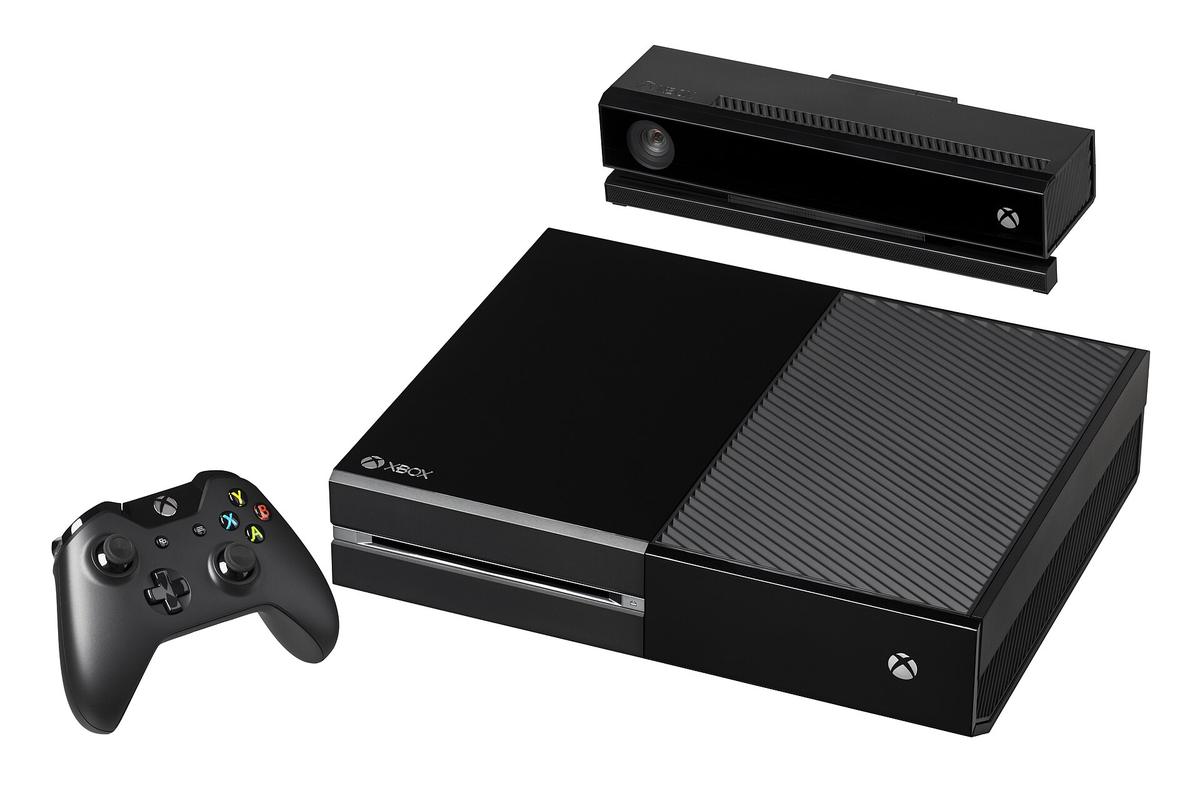
The Xbox 360's component cable delivers YPbPr at up to 1080i, and the HDMI port delivers 1080p. On a modern screen, HDMI wins for convenience, but not for quality. The 360's HDMI output is identical to component at 480p and 720p; the console's internal DAC is the same. The difference is that component carries a separate sync signal, and some panels add a tiny amount of analogue-to-digital conversion lag. The component cable is fine, but it introduces a risk: a cheap third-party cable can have a loose ground, causing a dark image or a rolling bar. The HDMI cable is immune to that.
The real reason to prefer HDMI on a 360 is EDID. An HDMI connection tells the screen the console's supported resolutions, and the 360 will automatically output 1080p, the native panel resolution for most modern TVs. With component, the 360 defaults to 480i unless you manually set it. Forget, and you get a blurry, letterboxed mess.
For the Original Xbox, there is no HDMI. The proprietary A/V port outputs component video natively. That is the best signal you can get without an internal HDMI mod. The Xbox 360's component cable fits the original console, but the pinout differs. You need a dedicated Original Xbox component cable. HD Retrovision makes one, but it is the same YPbPr signal as the official Microsoft cable, just with better shielding. The shielding matters on a 4K OLED, where a long cable run picks up interference from the panel's power supply. The rule: use component for the Original Xbox, HDMI for the 360, and never put a generic converter in the chain.
Xbox 360 480i Motion-Adaptive Deinterlacing
The 360's 480i games are the hard case. Titles like the original Halo and Ninja Gaiden run at 480i and 480p, but some games, especially Japanese RPGs and early Xbox Live Arcade titles, are 480i-only. A modern TV's deinterlacer applies bob, which flickers on horizontal motion and ruins the image. The RetroTINK 5X-Pro applies motion-adaptive deinterlacing, which reconstructs a full resolution frame from the alternating fields. It adds zero lag and eliminates the flicker. The OSSC does bob deinterlacing, which is acceptable for still screens but shimmers on text and sprites. If you play 480i-heavy games, the 5X is the only sensible choice.
The motion-adaptive algorithm works by comparing adjacent fields and interpolating the missing lines. It is not perfect; fast-moving red objects can still show a slight rainbow effect, but it is a fraction of the combing you get from a standard deinterlacer. The 5X also has a scanline filter for 480i, which mimics a CRT's aperture grille and masks the remaining artifacts. Enable it for pixel-art games. Disable it for 3D titles. The 360's own scaler to 1080p is a framebuffer scale that adds up to 10ms of lag, so set the 360 to output 720p and let the 5X do the final scale to 1440p.
RetroTINK 5X Xbox Deinterlacing
Signal Inputs And Output Resolution
The RetroTINK 5X-Pro is the reference lag-free scaler for both consoles. It accepts component, S-Video, composite, RGB SCART, and HDMI. For the Original Xbox, you run component into the unit, and it handles 480i, 480p, 720p, and 1080i. The 5X's motion-adaptive deinterlacer is the best you can buy under the RetroTINK 4K. It also has a menu system with profile saving, so you can have one profile for Xbox 480i games and another for Xbox 360 720p games. The 5X outputs up to 1440p, which is a perfect 5x scale of 480p and a 3x scale of 480i. On a 4K OLED, 1440p is upscaled to 4K by the panel, and the result is clean and sharp.
Black Frame Insertion And Capture Cards
The 5X's HDMI input passes through the signal with no processing. Connect the 360 via HDMI and the Original Xbox via component. The 5X also has a built-in 120Hz BFI (black frame insertion) mode, which eliminates sample-and-hold blur on an OLED. This is a game-changer for 480p games, where the motion is already smooth but the panel's persistence blurs it. Enable BFI at 60Hz and the image is as clear as a CRT. One warning: the 5X's EDID can confuse some capture cards, which report a 1080i signal and record a deinterlaced file. If you stream, check the capture card's EDID settings and force 1080p.
OSSC Xbox 480p Scaling
The OSSC is the foundational zero-lag line-multiplier. It has no framebuffer, so lag is measured in microseconds. For 480p games on the Original Xbox, the OSSC line-doubles to 960p, and the image is razor-sharp. It accepts component and RGB via a SCART breakout, but it has no composite or S-Video input. The OSSC's 480i handling is bob, which is a compromise. If you play mostly 480p and 720p games, the OSSC is the better choice than the 5X because it preserves every pixel with no scaling artifact. The OSSC Pro adds a framebuffer and motion-adaptive deinterlacing, but it costs more than the 5X.
Set the Original Xbox to 480p and output component into the OSSC. The OSSC line-doubles to 960p, and your screen scales to 4K. The result is a clean, pixel-perfect image with zero lag. The caveat: the OSSC does not deinterlace 480i well. If a game is 480i-only, the OSSC will produce a visibly flickering image. The 5X is the better choice for a mixed library. The OSSC is for the purist who only plays 480p and 720p games and wants a transparent signal path.
GBS-Control Chroma Artifact Reports
GBS-Control is a community-developed firmware for a cheap GBS-8200 VGA scaler board. It is a competent lag-free upscaler with motion-adaptive deinterlacing, and it is far cheaper than a RetroTINK. Community testing on the Shmups Forum has documented persistent chroma artifacts on fast-moving red objects. The issue is the GBS-Control's colour decoder, which samples the component signal at a slightly wrong rate, causing reds to bleed. The artifact is visible on 480i and 480p games, and it is more pronounced on sprites with high-contrast red edges.
The GBS-Control is a budget option if you are willing to tweak the settings. The firmware lets you adjust the colour decoder's phase and frequency, and some users have eliminated the artifact. It requires a soldering iron to install the control board, and the default settings are poor. The 5X does not have this issue. The 5X's ADC is of higher quality, and the colour decoder is accurate. Skip the GBS-Control for a plug-and-play experience. If you enjoy tinkering, it is a valid alternative, but be prepared to spend an evening calibrating.
The 1080i Trap on the Original Xbox
The Original Xbox can output 1080i on a small number of titles, including Dragon's Lair 3D and a few others. Do not use it. The 1080i signal is interlaced, and the console's GPU, the NVIDIA NV2A, renders the game at 480p and then scales it to 1080i. The result is a softer image than 480p, and the deinterlacer has to work harder. The 1080i mode also adds lag because the scaler has to buffer the frame. Set the Original Xbox to 480p and let your scaler handle the upscale to 1440p or 4K. The same applies to the 360: set it to 720p, not 1080i or 1080p. The 360's HDMI 1.2 output is capped at 1080p, but many games, like Gears of War, render at sub-720p and upscale internally. You cannot fix that with a scaler; you can only play the game as designed.
The exception is the Xbox 360's DVD playback. If you watch a DVD, set the console to 1080i and let the console's deinterlacer do the work. For games, 720p is the sweet spot. A 5X or OSSC will scale 720p to the panel's native resolution with a clean, non-interlaced signal. You avoid the 1080i trap entirely.
Softmod the Original Xbox for 480p to 1080i
Set the Original Xbox to 480p manually. The default is 480i. Plug a component cable in without changing the setting, and you get a black screen or a double image. Softmod the console. A softmod is a software exploit that unlocks the video modes. It lets you force 480p, 720p, and 1080i on games that do not natively support them. It also lets you install an emulator to play backups. The softmod is reversible with a firmware update, and it is the only way to get 480p out of some games.
To softmod, you need a memory card with a save game exploit, a USB drive, and a copy of a compatible game. The process takes about 20 minutes and is well-documented on RetroRGB. Once softmodded, use a homebrew app to set the video mode to 480p and force it for all games. This is the single best upgrade for the Original Xbox on a modern screen. Without it, many games default to 480i, and you lose the sharpness. A hardmod requires desoldering the motherboard and is unnecessary for video output.
The Cheap Converter Trap
The worst thing you can do is buy a generic HDMI converter from Sham Shui Po. These devices claim to upscale to 1080p, but they treat a 240p signal as 480i, apply bob deinterlacing, and discard half the vertical resolution. The result is a smeared, combed mess with 2-4 frames of lag. The chip inside is designed for video, not games. It has no motion-adaptive deinterlacing and no proper scaling. The RetroTINK 5X and OSSC exist precisely because these converters fail.
If you are in Hong Kong and in a hurry, the failure case is this: it is 1am, the game shop is closed, and you can only find a generic converter in a 24-hour electronics shop. Do not buy it. Wait for a 5X to ship, or order a pre-built GBS-Control from a local seller. The generic converter will waste an evening and make you think the console is broken. It is not. The console is fine. The converter is the problem.
Audio and The Final Signal Chain
Routing Audio Correctly
Audio embedding is straightforward. The RetroTINK 5X and OSSC pass through analogue audio from component or SCART, but they do not embed it into HDMI. You need a separate audio extractor or a screen with analogue inputs. The Original Xbox and Xbox 360 both have optical audio output. Run the optical cable to your soundbar or receiver, and run the video signal cleanly. For the 360 via HDMI, the HDMI carries audio, but the analogue output is disabled when HDMI is connected. If you want analogue audio, use the component cable's audio jacks and leave the HDMI video-only. This is a common setup for streamers who need to capture game audio separately.
Fixing The HDMI Handshake
The HDMI handshake is the final gotcha. If you have a capture card in the chain, it can cause an EDID mismatch, and the screen and scaler will re-negotiate the connection every few seconds, causing a blinking black screen. Set the capture card's EDID to mirror the screen's EDID, or disable HDCP on the scaler. The 5X has a setting for this. If you see a blinking screen, it is not a bad cable. It is the EDID. Turn off HDCP and re-sync.
Frequently Asked Questions
Why does my Xbox 360 look blurry on a 4K TV?
Because the 360 outputs 720p natively for most games, and a 4K TV's scaler is softening it. Set the 360 to 720p and use a RetroTINK 5X to scale to 1440p, then let the TV scale to 4K.
Can I use the Xbox 360's component cable on the Original Xbox?
No. The pinout is different. Use a dedicated Original Xbox component cable or an HD RetroVision cable with a transcoder.
Is the OSSC better than the RetroTINK 5X?
For 480p and 720p, yes. For 480i, no. The OSSC bobs, the RetroTINK 5X motion-adaptively deinterlaces.
Does the mClassic help with Xbox 360?
No. The mClassic claims 1440p but outputs a 1080p active image upscaled. It adds anti-aliasing, not clarity. The RetroTINK 5X is honest scaling.
Why does my screen blink black every few seconds?
That is an EDID handshake loop. A capture card or switch is reporting the wrong EDID. Set the scaler to output 1080p and disable HDCP.
Do I need a softmod to get 480p on the Original Xbox?
Yes, for many games. The component cable alone gives you 480i. A softmod unlocks 480p, 720p, and 1080i.
What is the best budget option?
A pre-built GBS-Control. It has motion-adaptive deinterlacing, but you must accept chroma artifacts on reds. The RetroTINK 5X is worth the extra money.
Who This Serves
This setup is for the person who wants to play Halo 2 at 480p and Gears of War at 720p without shimmer or blur. It is for the capture hobbyist who needs a clean HDMI signal and a lag-free play screen. It is for the Hong Kong apartment gamer with one 4K OLED and a shelf of consoles. It is not for the person who wants plug-and-play simplicity with zero settings menus. It is not for the modern gamer who only plays the Series X and cares about VRR and 40fps modes. That player needs screen-side motion blur, not a scaler. The RetroTINK 5X and OSSC are tools for a specific job: taking a 15kHz analogue signal and making it look like a high-resolution game without destroying it.
More in this guide
Retro Console Connection Guides: Best Signal Chain Per ConsoleConnecting a PlayStation 1 to a Modern Display with the Cleanest 240p SignalConnecting a Nintendo 64 to a Modern TV and Managing Its Inherent Video Softness.