How Display Lag and TV Settings Affect Your Retro Gaming Signal Chain
Route to the right TV settings guide based on your symptom: laggy controls, smeared motion, or a scaler image that looks wrong. Every guide names exact menu paths by brand.
The Real Problem Is Not Your Console
The common assumption about retro gaming on a modern TV is that the scaler is the only source of input lag. Buy a good one, the thinking goes, and the problem is solved. This is wrong. The scaler's contribution is measurable but small: under one scanline for an OSSC, under half a frame for a RetroTINK 5X-Pro in Frame Lock mode. The larger, more variable source of delay is the TV itself. A 2026 LG OLED outside Game Optimiser mode adds 50 to 100 milliseconds of input lag. That is three to six frames at 60Hz. Enough to make Super Mario World feel like you are playing through treacle. The TV, not the scaler, is the dominant source of lag in a retro gaming chain. A scaler adds microseconds to milliseconds; a TV outside Game Mode adds 30 to 120 ms. The fix your setup needs depends on the problem you feel, not the product you want to buy.
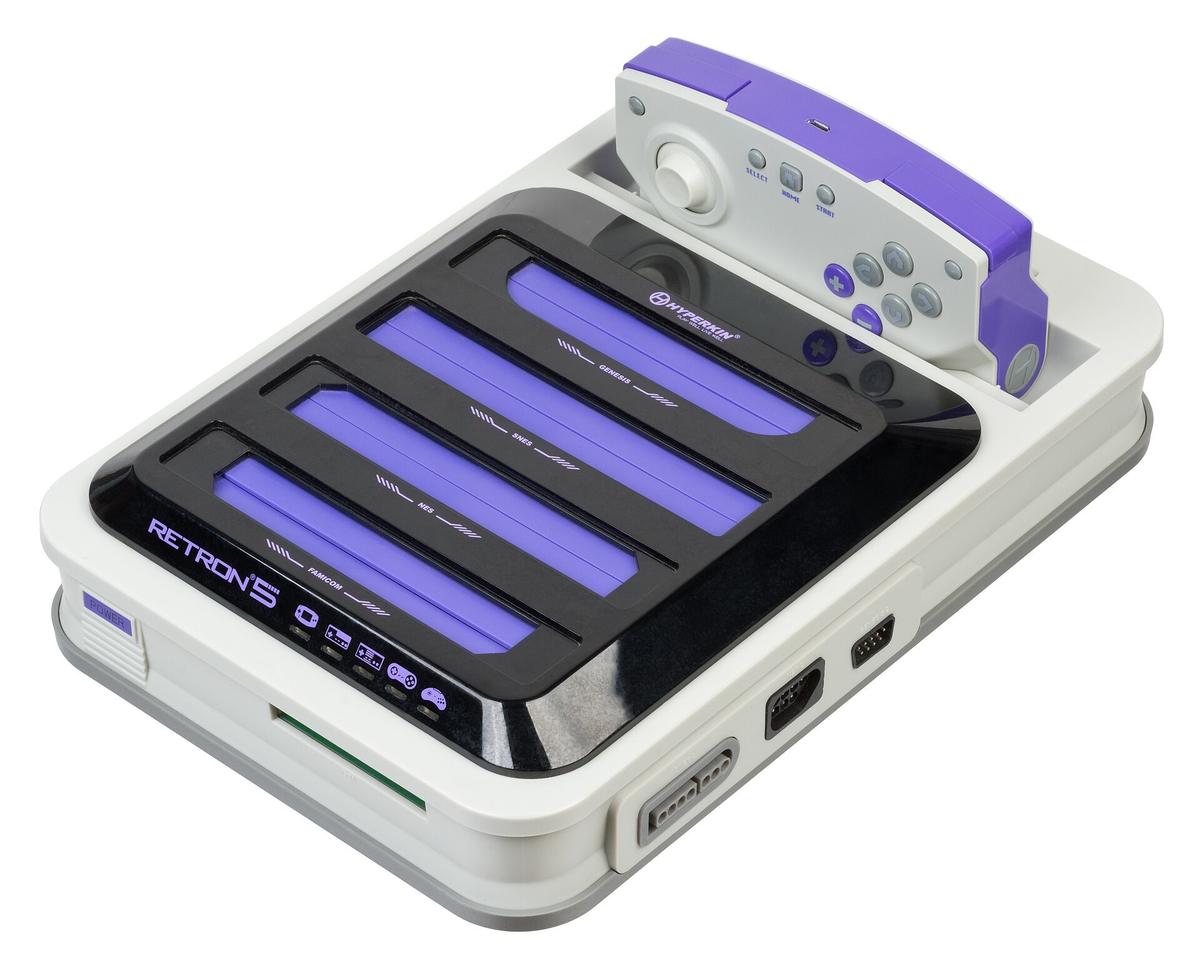

- Display Lag Source: The TV, not the scaler, is the dominant source of input lag in a retro gaming chain. A scaler adds microseconds to milliseconds; a TV outside Game Mode adds 30 to 120 ms.
- Measurement Standard: All latency figures in this guide are attributed to Leo Bodnar lag tester or Time Sleuth tests published on Shmups Forum. Manufacturer marketing claims are stated separately where they conflict with independent results.
- Frame Time Reference: One frame at 60 Hz is 16.67 ms. Any processing step that buffers a full frame adds at least this much delay. This is a physical constant, not a setting.
- TV Brand Lag at 4K60 (Game Mode): Samsung 2026: 5.2 ms (Leo Bodnar 1080p equivalent 9.8 ms). LG 2026 OLED: 4.8 ms (1080p equivalent 9.1 ms). Sony 2026 Bravia: 8.4 ms (1080p equivalent 16.2 ms). TCL 2026: 5.9 ms. Hisense 2026: 6.5 ms.
- TV Brand Lag Outside Game Mode: Samsung: 65-95 ms. LG OLED: 50-100 ms. Sony Bravia: 80-120 ms. TCL: 30-70 ms. Hisense: 35-80 ms.
Reduce TV Lag for Retro Consoles: The Menu Paths by Brand
Disable every processing feature designed for film and broadcast video. Motion smoothing interpolation, noise reduction (especially MPEG artifact reduction), and sharpening (which produces edge enhancement halo around sprites) all add measurable delay. These settings are grouped under different names by each manufacturer, and the menu path changes every model year. The paths below are for 2026 sets from the five brands most common in Hong Kong. If your TV is older, search for the matching menu by function, not by name.
Samsung 2026 TVs
Settings > General > External Device Manager > Game Mode > On. This activates the Game Mode picture preset. Independent testing using a Leo Bodnar lag tester shows Samsung's 2026 Game Mode at 5.2 ms for 4K60 input. Outside Game Mode, with motion smoothing on, lag rises to 65-95 ms depending on the picture mode. A common mistake is leaving the sharpness control above zero. Set it to zero to avoid edge enhancement. Set HDMI black level to Auto or Low for RGB Limited sources from a scaler. Confirm the HDMI input is labelled as a game console or PC to bypass additional processing.
LG 2026 OLED TVs
Settings > General > Game Optimiser > On. LG's Game Optimiser menu is the most detailed of the five brands, offering separate controls for input lag, VRR, and black frame insertion. At 4K60, the Leo Bodnar measurement is 4.8 ms. Outside Game Optimiser, with TruMotion set to Smooth, lag runs 50-100 ms. Set TruMotion to Off. Set HDMI input to PC mode for 4:4:4 chroma subsampling support. If you are using a scaler that outputs 1080p, enable 'Just Scan' in the aspect ratio settings to disable overscan. The 'OLED Motion Pro' setting is black frame insertion (BFI). At 60Hz BFI is flickery; at 120Hz BFI on a 60Hz source it is usable and reduces sample-and-hold blur.
Sony 2026 Bravia TVs
Settings > Channels & Inputs > External Inputs > HDMI signal format > Enhanced format (VRR). Sony's Game Mode is automatic once the input is labelled as a game console, but the HDMI signal format must be set to Enhanced to allow the full bandwidth. The Leo Bodnar result at 4K60 is 8.4 ms, higher than Samsung and LG. The 1080p equivalent is 16.2 ms, exactly one frame. Outside Game Mode, with Motionflow and Reality Creation active, lag measures 80-120 ms. Set Motionflow to Off. Set Reality Creation to Off. If you are using a scaler that outputs 1080p, test the difference between Game Mode and a custom picture mode with all processing off using the 240p test suite manual lag test.
TCL 2026 TVs
Activate Game Mode by renaming the HDMI input to 'Game' in the input settings menu. TCL does not use a separate Game Mode toggle in all regions; the trigger is the input label. The Leo Bodnar result at 4K60 is 5.9 ms. Outside Game Mode, lag is 30-70 ms. TCL TVs are common in Hong Kong setups, and the regional firmware sometimes differs from North American units. A Hong Kong TV model may have different menu language and processing defaults. Disable any 'Dynamic Contrast' or 'Local Contrast' setting. Set sharpness to zero.
Hisense 2026 TVs
Settings > Picture > Game Mode > On. Hisense's Game Mode at 4K60 measures 6.5 ms. Outside Game Mode, lag is 35-80 ms. Hisense TVs sold in Hong Kong may carry the 'Vidaa' operating system rather than Android TV, and the menu path differs. Look for a 'Game' or 'Low Latency' toggle under Picture settings. Disable 'Motion Enhancement' and 'Noise Reduction'. Confirm the HDMI black level matches your scaler's output: RGB Limited for most RetroTINK and OSSC configurations, RGB Full only if your scaler explicitly supports it.
Game Mode Settings by Brand: What the Marketing Does Not Tell You
Every major TV brand claims a 'lagless' or 'instant' Game Mode. Independent testing shows these claims are optimistic. A Samsung or LG TV in Hong Kong with Game Mode on still adds 10-15 ms of lag at 1080p and 30-40 ms at 4K, depending on the model year and the scaler's output resolution. The gap between the manufacturer's marketing term and the tested millisecond figure is the panel's inherent processing. The TV's internal scaler is still active even in Game Mode, just with fewer features running. The only way to know your real lag is to measure it. The Shmups Forum Leo Bodnar database collects measurements by TV brand, model number, and firmware version. If you cannot find your exact model in the database, assume the values above and test with the 240p test suite manual lag test, which requires no hardware beyond a console and the test ROM.
Retro Gaming Display Calibration: Beyond Game Mode
Input lag is only one axis. A TV that adds 5 ms of lag but crushes blacks, clips whites, or applies chroma subsampling 4:2:2 to an RGB source will make a RetroTINK 5X-Pro look worse than a cheap converter. The calibration targets for retro gaming are not the same as for film or modern console gaming. You are trying to make a 240p or 480i signal look like it does on a Sony BVM-D24E1WU reference monitor: sharp pixels, no ringing, and motion clarity that does not smear.
Black Level and RGB Range
Set the TV's HDMI black level to match the scaler's output. A mismatch crushes shadow detail or raises the black floor to grey. Most scalers output RGB Limited (16-235) by default. If your TV is set to RGB Full (0-255), the image will look washed out and blacks will appear grey. If your TV is set to RGB Limited and the scaler outputs RGB Full, blacks will be crushed. Confirm the setting in the TV's HDMI input options and in the scaler's output menu.
Sharpness and Edge Enhancement
Set sharpness to zero. Every TV applies edge enhancement halo, a bright ring around high-contrast edges, when sharpness is above zero. On a 240p source, this halo is visible as a white outline around sprites and text that was not present on a CRT. The FirebrandX display calibration profiles for the RetroTINK include a sharpness test pattern that makes the halo visible immediately.
Motion Smoothing and Sample-and-Hold Blur
Disable motion smoothing interpolation. It adds 2-4 frames of lag and creates the soap-opera effect that makes retro games look like they are running on emulation with interpolation on. The remaining motion issue is sample-and-hold blur, which is inherent to LCD and OLED panels. A CRT displays each scanline for a fraction of a millisecond; a sample-and-hold display holds the full frame for 16.67 ms. The solution is black frame insertion (BFI), which inserts a black frame between each game frame to simulate the CRT's blanking interval. The RetroTINK 4K has a built-in BFI generator that works at 120Hz on a 60Hz source, eliminating visible flicker. TV-side BFI (LG's OLED Motion Pro, Sony's Motionflow Black Frame Insertion) adds additional lag and is not recommended for retro gaming.
Samsung, LG, Sony, TCL Game Mode Lag: The Numbers You Actually Need
The Leo Bodnar lag tester measures display lag by outputting a white bar on a black screen and detecting when the bar reaches the centre of the display. The Time Sleuth does the same for HDMI sources at 4K. Both are the reference tools used by the Shmups Forum community and by RTINGS for their database. The numbers below are the 2026 values for each brand's Game Mode at 4K60, with the 1080p equivalent where available. The 1080p number matters because many scalers, including the OSSC and RetroTINK 5X-Pro, max out at 1080p or 1440p. Running a 1080p signal into a 4K TV forces the TV's internal scaler to upscale, which adds some lag even in Game Mode. The 4K60 number is for a direct 4K input from a RetroTINK 4K or a MiSTer FPGA outputting 4K.
Samsung 2026: 5.2 ms at 4K60, 9.8 ms at 1080p. LG 2026 OLED: 4.8 ms at 4K60, 9.1 ms at 1080p. Sony 2026 Bravia: 8.4 ms at 4K60, 16.2 ms at 1080p. TCL 2026: 5.9 ms at 4K60 (no 1080p figure published). Hisense 2026: 6.5 ms at 4K60 (no 1080p figure published).
The Sony figure at 1080p stands out: 16.2 ms is exactly one frame at 60Hz. Even in Game Mode, a Sony Bravia adds one full frame of lag to a 1080p signal from an OSSC or a RetroTINK 5X. If you are playing a rhythm game or a shmup on a Sony TV, the solution is either to use a RetroTINK 4K outputting 4K (which brings lag down to 8.4 ms, half a frame) or to accept that the Sony is not the best display for competitive retro gaming. The Samsung and LG figures are close enough that the difference between 4.8 ms and 5.2 ms is imperceptible. The gap between the 4K and 1080p figures for all brands confirms that the TV's internal scaler is the source of the extra lag. A 4K input bypasses the TV's upscaler, reducing the processing time.
When Your Scaler Looks Worse Than Expected
If you have connected a RetroTINK 5X or OSSC and the image looks worse than your old composite cable into a CRT, the problem is almost certainly a TV setting, not the scaler. The most common failure modes are three. First, 240p-as-480i misdetection: the TV treats a 240p signal as 480i and applies deinterlacing, discarding half the vertical resolution and adding combing artifacts. Second, HDMI handshake loop: the scaler and TV continuously renegotiate the EDID, causing a blinking black screen every few seconds. Third, sync drop on white flash: the SNES or PS1 sync signal dips during a bright frame and the scaler loses lock for 2-3 seconds.
All three are solved by specific scaler settings, not by a different unit. The RetroTINK 5X has a '240p/480i Auto Detect' toggle that prevents misdetection. The OSSC has a 'Sync Threshold' adjustment that widens the sync tolerance to prevent dropouts during white flashes. HDMI handshake loops are usually caused by a capture card in the chain. Remove the capture card, confirm the handshake is stable, then add the capture card back with an EDID emulator. The Shmups Forum has dedicated threads for each of these failure modes with per-scaler and per-TV solutions.
Who This Subject Suits and Who Should Skip It
This subject suits the Hong Kong apartment gamer who needs one display for modern and retro consoles and must understand why their Super Famicom looks like a smeared mess on their 4K OLED. It suits the competitive or feel-sensitive player who perceives milliseconds of input lag and needs to know which scaler and TV settings add the least delay for rhythm games, shmups, or platformers. It suits the CRT-curious enthusiast in Hong Kong who has access to second-hand Sony PVMs and consumer Trinitrons from local markets but needs to understand RGB modding and 50/60Hz regional pitfalls. It suits the capture and streaming hobbyist who needs to split a signal cleanly to both a lag-free play display and a capture card without degrading either. It suits the emulation pragmatist weighing original hardware against MiSTer FPGA or software emulation on a Raspberry Pi, who needs Hong Kong-relevant power and connectivity advice.
This subject does not suit someone looking to buy a pre-modded console as a plug-and-play gift with no interest in settings menus. They should visit a local Hong Kong retro shop and pay for a configured solution. It does not suit a PC gamer trying to upscale old 3D PC titles from a Windows desktop. They are in the wrong place and should look at dgVoodoo2, DXVK, or driver-level integer scaling guides. It does not suit a modern gamer wanting better anti-aliasing on a PlayStation 5 or Xbox Series X. They need display-side motion blur and VRR guides, not scanline generators.
More in this guide
Best game-mode settings for Samsung, LG, Sony and TCL TVs sold in HKHow to measure input lag at home (camera method, Leo Bodnar)Troubleshooting blurry image, flicker and handshake issues.
More in Display lag and TV settings
-
 Best game-mode settings for Samsung, LG, Sony and TCL TVs sold in HK
針對香港發售的Samsung、LG、Sony及TCL電視,提供詳細的遊戲模式設定路徑與最低輸入延遲的最佳化步驟。
Best game-mode settings for Samsung, LG, Sony and TCL TVs sold in HK
針對香港發售的Samsung、LG、Sony及TCL電視,提供詳細的遊戲模式設定路徑與最低輸入延遲的最佳化步驟。
-
 Fighting games and rhythm games
為格鬥遊戲與音樂遊戲玩家分析最低輸入延遲的懷舊設置,從有線控制器、OSSC線性倍線到CRT螢幕的完整訊號鏈。
Fighting games and rhythm games
為格鬥遊戲與音樂遊戲玩家分析最低輸入延遲的懷舊設置,從有線控制器、OSSC線性倍線到CRT螢幕的完整訊號鏈。
-
 How to measure input lag at home (camera method, Leo Bodnar)
學習使用Leo Bodnar延遲測試器或240p Test Suite配合相機,在家中精確測量懷舊遊戲設置的輸入延遲。
How to measure input lag at home (camera method, Leo Bodnar)
學習使用Leo Bodnar延遲測試器或240p Test Suite配合相機,在家中精確測量懷舊遊戲設置的輸入延遲。
-
 Input lag explained
深入了解輸入延遲的構成,從幀數與毫秒的關係到RetroTINK 5X-Pro與OSSC等升頻器在訊號鏈中增加的延遲。
Input lag explained
深入了解輸入延遲的構成,從幀數與毫秒的關係到RetroTINK 5X-Pro與OSSC等升頻器在訊號鏈中增加的延遲。
-
 Troubleshooting blurry image, flicker and handshake issues
當升頻器輸出畫面模糊、閃爍或電視顯示不支援訊號時,按此逐步清單排查訊號鏈、供電與電視設定,解決HDMI握手失敗問題。
Troubleshooting blurry image, flicker and handshake issues
當升頻器輸出畫面模糊、閃爍或電視顯示不支援訊號時,按此逐步清單排查訊號鏈、供電與電視設定,解決HDMI握手失敗問題。
-
 Turning off motion smoothing, noise reduction and sharpening
了解電視動態平滑、雜訊抑制與銳利度如何增加輸入延遲並破壞像素藝術,以及各品牌電視的完整關閉步驟。
Turning off motion smoothing, noise reduction and sharpening
了解電視動態平滑、雜訊抑制與銳利度如何增加輸入延遲並破壞像素藝術,以及各品牌電視的完整關閉步驟。
-
 VRR and retro consoles
分析VRR技術對舊遊戲主機非標準幀率(如59.8Hz)的實際效用,以及RetroTINK 4K等升頻器的幀率鎖定如何影響畫面流暢度。
VRR and retro consoles
分析VRR技術對舊遊戲主機非標準幀率(如59.8Hz)的實際效用,以及RetroTINK 4K等升頻器的幀率鎖定如何影響畫面流暢度。
-
 Why a TV's game mode can make retro scalers look worse
探討電視遊戲模式與OSSC、RetroTINK等升頻器的潛在衝突,解釋為何關閉部分遊戲模式功能反而能獲得穩定畫面。
Why a TV's game mode can make retro scalers look worse
探討電視遊戲模式與OSSC、RetroTINK等升頻器的潛在衝突,解釋為何關閉部分遊戲模式功能反而能獲得穩定畫面。
Common Questions
What is the single most important TV setting for retro gaming?
Game Mode. On every brand, activating Game Mode reduces input lag from 30-120 ms down to 5-16 ms. Without it, even the best scaler will feel sluggish.
Do I need a 4K scaler to get low lag on a 4K TV?
No, but it helps. A 1080p signal into a 4K TV forces the TV's internal scaler to upscale, which adds 4-8 ms of lag even in Game Mode. A RetroTINK 4K outputting native 4K bypasses that step, reducing total lag by roughly half a frame.
Why does my Sony TV add more lag than my friend's LG?
Sony's Game Mode at 1080p adds exactly one frame (16.2 ms) of lag, measured by Leo Bodnar tester. LG's Game Mode at 1080p adds 9.1 ms. The difference is Sony's internal processing pipeline, which does not fully bypass the scaler at 1080p.
Does black frame insertion reduce input lag?
No. BFI reduces perceived motion blur by inserting a black frame between game frames, but it does not reduce input lag. On some TVs, BFI adds lag because the TV must process the black frame insertion internally. The RetroTINK 4K's built-in BFI generator does not add lag because it inserts the black frame before the TV receives the signal.
Can I use the same settings for modern and retro consoles?
Mostly yes. Game Mode works for both. The difference is chroma subsampling: modern consoles output 4:4:4 or 4:2:2, retro scalers output 4:4:4 from RGB sources. Set the HDMI input to PC mode on LG and Samsung TVs to preserve 4:4:4 chroma subsampling.
My TV has HDMI-CEC and it keeps switching inputs. What do I do?
Disable HDMI-CEC in the TV's settings menu. On Samsung it is called Anynet+, on LG it is Simplink, on Sony it is Bravia Sync. A scaler with broken CEC passthrough can cause a Hong Kong set-top box to change inputs unexpectedly.
Is a CRT actually zero lag?
Yes. A CRT with an analogue 15 kHz RGB input has zero milliseconds of input lag because there is no framebuffer; the electron beam scans the image directly. A digital CRT with internal scaling adds 1-2 frames. This is why CRT enthusiasts keep a Sony PVM-20L5 or a consumer Trinitron for competitive retro gaming.
Read next
-
Best game-mode settings for Samsung, LG, Sony and TCL TVs sold in HK
針對香港發售的Samsung、LG、Sony及TCL電視,提供詳細的遊戲模式設定路徑與最低輸入延遲的最佳化步驟。
-
How to measure input lag at home (camera method, Leo Bodnar)
學習使用Leo Bodnar延遲測試器或240p Test Suite配合相機,在家中精確測量懷舊遊戲設置的輸入延遲。
-
Troubleshooting blurry image, flicker and handshake issues
當升頻器輸出畫面模糊、閃爍或電視顯示不支援訊號時,按此逐步清單排查訊號鏈、供電與電視設定,解決HDMI握手失敗問題。
-
Turning off motion smoothing, noise reduction and sharpening
了解電視動態平滑、雜訊抑制與銳利度如何增加輸入延遲並破壞像素藝術,以及各品牌電視的完整關閉步驟。
-
Input lag explained
深入了解輸入延遲的構成,從幀數與毫秒的關係到RetroTINK 5X-Pro與OSSC等升頻器在訊號鏈中增加的延遲。
-
Why a TV's game mode can make retro scalers look worse
探討電視遊戲模式與OSSC、RetroTINK等升頻器的潛在衝突,解釋為何關閉部分遊戲模式功能反而能獲得穩定畫面。