The Nintendo Switch Visuals Hub: Understanding Docked Output and External Upscaling
Hub page routing Nintendo Switch owners to the right guide for improving visuals on a 4K TV, from mClassic setup to understanding per-game output resolution.
The Nintendo Switch Visuals Hub: Understanding Docked Output and External Upscaling
You drop The Legend of Zelda: Tears of the Kingdom into the dock, step back to your sofa, and the Great Sky Island looks like someone smeared Vaseline on the lens. The game renders internally at 900p, the dock outputs 1080p, and your 4K TV stretches that to fill the panel. Every pixel is a guess your TV made. This is the Nintendo Switch visual problem, and it is not going away until the Switch 2 arrives. What you can fix, right now, is how that guess is made. This guide maps exactly what each external device does to the signal, what it cannot fix, and which route solves which specific complaint. The fundamental constraint is fixed: the Switch outputs a maximum of 1080p in docked mode, no matter which model you own. Any device you plug in works within that ceiling. Understanding the ceiling is where you start.
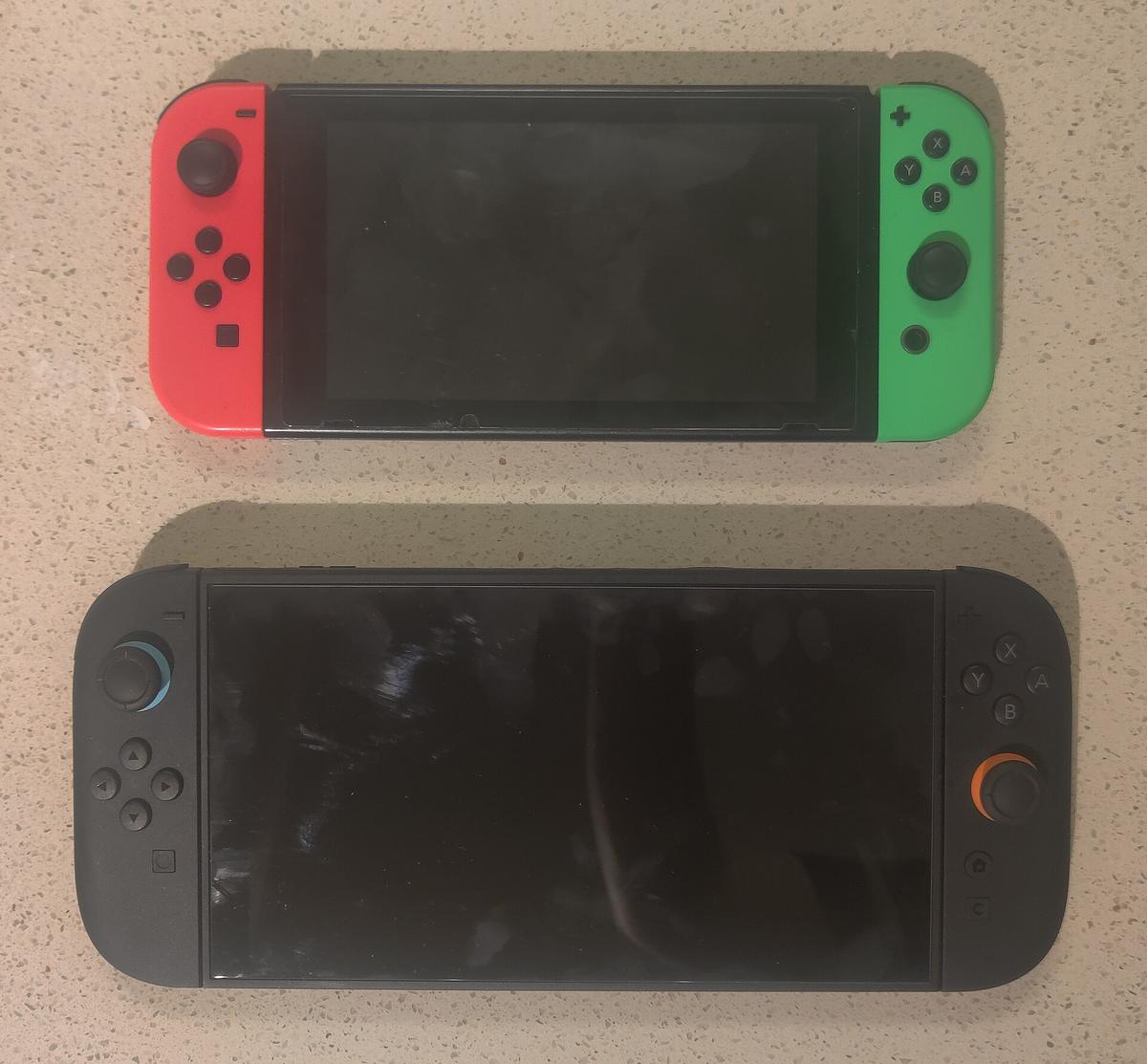

- Maximum Native Docked Output: 1920×1080 (1080p) at 60 Hz, all models
- Internal Render Resolution Range: 720p to 1080p docked, with dynamic resolution scaling in many titles
- Handheld Resolution: 1280×720 (720p) on all models, including OLED
- HDMI Version (All Docks): 1.4b, limiting output to 1080p at 60 Hz
- Colour Output Options: RGB 8-bit, YCbCr 4:2:2, YCbCr 4:4:4, selectable in System Settings
- System Firmware (As Of 2024): 19.0.1, released 2024-10-28; Nintendo publishes the current version at nintendo.com
- TV Resolution Setting: Automatic, 480p, 720p, or 1080p in System Settings
- RGB Range Setting: Automatic, Limited (16-235), or Full (0-255)
What Each Game Actually Outputs, And Where That Number Comes From
The Switch dock does not render games. It takes whatever resolution the Tegra X1 chip produced internally and scales it to your chosen HDMI output. The internal render resolution per game is what determines sharpness, and it varies wildly. Digital Foundry publishes per-title analysis. For Tears of the Kingdom, internal resolution in docked mode is 900p with dynamic scaling that drops to 720p in busy areas. Super Mario Odyssey renders at 900p docked with a stable 60 frames per second. Metroid Dread hits a native 1080p docked. Xenoblade Chronicles 3 targets 540p in handheld and 720p docked, and it does not hold either one.
An external scaler sees only the HDMI signal the dock outputs. If a game renders at 720p and the dock sends 1080p, the scaler receives 1080p of upscaled 720p. It cannot reach back into the render pipeline to grab the original 720p image. It can apply edge-smoothing to the jagged edges the internal upscale created, and it can upscale that 1080p signal to 1440p or 4K, but it cannot recover detail the console already discarded. That is the limit.
Switch Docked Output Resolution Per Game: The Real List
You do not need to guess. The Switch docked output resolution per game is documented per title by Digital Foundry and the community at the Shmups Forum. For any game you care about, search for the Digital Foundry analysis. They measure the render resolution frame by frame and note when dynamic resolution scaling kicks in. If a game runs at a dynamic 720p to 900p, no external device will make it look like a native 1080p title. What an external scaler can do is make the 900p image look less soft on a 4K panel by applying a better upscale algorithm than the one in your TV.
The table below lists common Switch titles with their docked internal render resolution and what an external scaler can realistically improve.
| Title | Internal Render Resolution (Docked) | Dynamic Range | What A Scaler Can Fix | What A Scaler Cannot Fix |
|---|---|---|---|---|
| The Legend of Zelda: Tears of the Kingdom | 900p (drops to 720p) | Yes, 720p–900p | Softening on a 4K TV; edge aliasing from the internal upscale | Blur from sub-native resolution during busy scenes |
| Super Mario Odyssey | 900p | No | General softness on a 4K panel; mild edge-smoothing improvement | Cannot reach native 1080p clarity |
| Metroid Dread | 1080p | No | Nothing meaningful; the image is already sharp | Does not need one |
| Xenoblade Chronicles 3 | 720p (drops below) | Yes, 540p–720p | Heavy edge-smoothing on shimmering edges; better upscale than a TV scaler | Cannot recover detail lost below 720p |
| Splatoon 3 | 1080p | No | Minimal; the game already looks clean | Does not need one |
| Pokémon Scarlet/Violet | 1080p (dynamic, often lower) | Yes, often drops below 1080p | Edge-smoothing on jagged geometry; smoother upscale on a 4K TV | Cannot fix the low internal detail of distant objects |
The Three Things You Might Want To Fix, And Which Device Fits Each
You are here because the Switch looks soft on your 4K TV. That is three separate problems dressed as one. Identify yours.
Sharpen A Soft 720p Game
A game like Xenoblade Chronicles 3 renders at 720p or below. Your TV's built-in scaler takes that 720p image, upscales it to 1080p in the dock, then upscales the 1080p signal to 4K. Every TV does this differently, and most consumer TVs add 10-15 milliseconds of lag at 1080p and 30-40ms at 4K even with Game Mode enabled. The mClassic from Marseille Inc. is the simplest fix here. Plug it between the dock and the TV. Set the mode switch to the blue LED position, which applies Marseille's proprietary contextual upscaling and edge-smoothing. The device outputs up to 1440p at 60 Hz, though the active image area is 1080p upscaled, not native 1440p render. It adds approximately 1-2ms of processing delay, measured by independent testing with a Time Sleuth. That is imperceptible. The unit is powered by the HDMI port via USB Micro-B at 5V DC. If your dock's USB port cannot deliver stable power, you may see signal dropouts. The setup takes about 30 seconds: plug the dongle into the dock, plug the HDMI cable into the dongle, turn the Switch on, set the mode switch. That is it.
Add Edge-Smoothing To A Shimmering Game
Tears of the Kingdom uses a form of TAA, but it leaves shimmer on thin geometry like grass and distant structures. The mClassic in blue LED mode applies a post-process smoothing pass that reduces that shimmer. The green LED mode applies smoothing only, without any resolution change. If you want more control, the RetroTINK 4K is the ceiling of the market. It uses a custom FPGA-based scaling engine and accepts HDMI input from the Switch dock. It can apply advanced CRT simulation filters, black frame insertion at 120 Hz, and HDR10 or HLG output. The RetroTINK 4K adds less than 1ms of delay when the framebuffer is off. It costs significantly more than the mClassic and requires a display that supports 4K input and ideally 120 Hz for BFI. For most Switch users, the mClassic is the correct choice. The RetroTINK 4K is for someone who also needs to upscale a Super Famicom, a PlayStation 2, and a Dreamcast, and wants one box to handle everything.
Understand Why Your Switch Looks Blurry On A 4K Screen
The Switch on 4K TV soft image problem has two causes. First, the console outputs 1080p maximum, and your TV stretches that to 3840×2160. That is a 4x pixel area scale. Second, many games use dynamic resolution scaling that drops below 1080p during demanding scenes. The TV's scaler, which is designed for video content, applies a smoothing filter that makes the image look soft. The fix is to bypass the TV scaler entirely by using an external device that applies a sharper, game-appropriate upscale. The mClassic is the cheap fix. The RetroTINK 5X-Pro, which outputs up to 1440p, is the middle option. The RetroTINK 4K is the premium option. All three add minimal delay compared to the TV's built-in scaler. The TV scaler remains active after the external device, but the external device sends a higher-resolution signal, so the TV has less work to do and introduces fewer artifacts.
Switch OLED Vs Switch 2 Upscaling: What The Hardware Changes
The Switch OLED model (HEG-001) released on 2021-10-08. Its dock outputs the same HDMI 1.4b 1080p signal as the base dock (HAC-007). The OLED screen itself is a 7.0-inch Samsung rigid OLED panel with approximately 100% DCI-P3 colour gamut and effectively infinite contrast, but that only matters in handheld mode. In docked mode, the OLED model performs identically to the base model. The Switch 2, which Nintendo has not yet announced as of 2026, is rumoured to support 4K output via a new dock. Until that hardware ships, the Switch OLED vs Switch 2 upscaling question has no answer beyond speculation. Any external scaler you buy today will work with the current Switch hardware. Whether it will work with a future Switch 2 depends on the HDMI version and HDCP implementation that console uses. The RetroTINK 4K is the safest bet because it handles HDMI 2.0 input and 4K output, but it is also the most expensive.
The mClassic Setup: What It Does And Does Not Do
The mClassic (model MCM001) is a plug-and-play HDMI dongle from Marseille Inc. It applies a proprietary contextual upscaling algorithm and a post-process smoothing pass to any 1080p or lower input. It outputs up to 1440p at 60 Hz. At 30 Hz and below, it outputs up to 4K. At 4K input, it passes the signal through unprocessed. It supports input refresh rates of 24, 30, 50, and 60 Hz. The device has three modes selected by a physical switch: blue LED for upscaling plus smoothing, green LED for smoothing only, and no LED for passthrough. It is powered via USB Micro-B at 5V DC. The unit adds approximately 1-2ms of processing delay, which is below the threshold of human perception. It does not add zero lag. The mClassic is the correct choice for someone who wants one simple fix for a single console on a single TV. It is the wrong choice for someone who needs composite or S-Video input, or who wants to upscale a retro console. For retro consoles, you need an OSSC, RetroTINK, or GBS-Control.
The External Scaler Options Beyond The mClassic
If the mClassic does not fit your needs, or if you have multiple consoles to connect, the external scaler market splits into three tiers.
OSSC Pro And RetroTINK 5X-Pro
The OSSC Pro is the successor to the Open Source Scan Converter. It adds a framebuffer, adaptive line multiplication, and an HDMI input. It accepts composite, S-Video, component, RGB SCART, VGA, and HDMI. The OSSC Pro outputs up to 1920×1200 from a 240p source using line5x mode. It adds less than 1ms of delay with the framebuffer off. The RetroTINK 5X-Pro, designed by Mike Chi, accepts the same inputs and outputs up to 1440p. It adds less than 1ms of delay with the framebuffer off. Both are excellent for retro consoles. For the Switch, they accept the HDMI signal and can apply processing, but they do not add meaningful improvement over the mClassic for a single console. They are the correct choice if you also own a Super Nintendo, a PlayStation 1, or a Sega Genesis and want to play them on the same 4K TV.
RetroTINK 4K
The RetroTINK 4K is the ceiling. It uses a custom FPGA-based scaling engine and accepts up to 4K input. It outputs 4K with HDR10 or HLG. It adds less than 1ms of delay at same-resolution passthrough. It supports black frame insertion at 120 Hz, which eliminates sample-and-hold blur on a 60 Hz source without visible flicker. It applies CRT simulation filters that replicate the look of a Sony PVM-20L5 or BVM-D24E1WU. For the Switch, the RetroTINK 4K can take the 1080p signal and output a 4K image with advanced smoothing and CRT filter options. It is overkill for a Switch-only setup. It is the correct choice for someone who wants a single scaler for every console from the NES to the Switch and is willing to pay for it.
GBS-Control
The GBS-Control is a community-developed control board and firmware that turns a cheap GBS-8200 VGA scaler into a competent lag-free upscaler with motion-adaptive deinterlacing. It is a DIY option. It accepts component, VGA, and RGB SCART. It does not accept HDMI. For the Switch, you would need an HDMI-to-component converter before the GBS-Control, which adds cost and delay. The GBS-Control is not a practical option for the Switch. It is relevant only for retro console users in Hong Kong who can source a GBS-8200 from Sham Shui Po and want a budget solution for PS2 or Dreamcast.
What An External Scaler Cannot Fix: The Real Limits
An external scaler cannot fix a game that renders below 720p internally. It cannot add detail that was never in the frame buffer. It cannot fix the Switch's 4GB RAM bottleneck that causes texture pop-in in games like Pokémon Scarlet and Violet. It cannot fix the 30Hz internal capture limit of 720p for streaming. It cannot fix the lack of VRR support in the Switch's HDMI 1.4b output. It cannot fix the fact that the Tegra X1's GPU clock drops to 307.2 MHz in handheld mode and 768 MHz in docked mode. It cannot fix the 25.6 GB/s memory bandwidth of the base model versus the 34.1 GB/s of the OLED and revised base models. It cannot fix a game that targets 30 frames per second and does not hold it. The scaler works on the signal, not on the game logic. If the game looks blurry because the engine is struggling, the scaler cannot help.
The TV scaler in your Hong Kong apartment's Samsung or LG panel adds 10-15ms of lag at 1080p and 30-40ms at 4K even with Game Mode enabled. An external scaler reduces the TV's workload but cannot eliminate the TV's processing entirely. The HDMI handshake between the scaler and the TV adds a fixed minimum time. The physics of input lag are fixed: a frame at 60 Hz is 16.67ms, and any processing step that buffers a full frame adds at least that much lag. The external scalers listed here buffer less than one frame, but the TV still buffers at least one frame in its scaler.
The Hong Kong Context: Voltage, Plugs, And Where To Buy
Hong Kong mains voltage is 220V at 50 Hz with a Type G (BS 1363) plug. The Nintendo Switch AC adapter (model HAC-002) uses a UK-style plug with Type G pins and accepts 100-240V input. Any scaler you buy must accept 220V input or come with a suitable power supply. The mClassic is powered by USB Micro-B at 5V DC, so any standard Hong Kong USB charger works. The RetroTINK 5X-Pro and RetroTINK 4K use external power supplies that may ship with a different plug. Check the input voltage range on the power supply before plugging it in. The OSSC Pro uses a barrel jack power supply. The GBS-Control uses a 5V power supply. All three are available through online retailers or from the Hong Kong Retro Game Association at meetups where hardware claims can be physically verified. Go to Golden Computer Centre and Ap Liu Street in Sham Shui Po. Those are the physical retail hubs. Do not buy generic HDMI converters from Sham Shui Po claiming 1080p upscaling for 50 HKD. They treat 240p as 480i, apply destructive deinterlacing, and add 2-4 frames of lag. They are designed for video, not games.
Where To Start
If you own a Switch and a 4K TV, and you are frustrated by the soft image, buy the mClassic. Plug it in, set the switch to blue LED, and see if the image looks better. It costs less than any other option, takes 30 seconds to set up, and solves the most common complaint. If the mClassic does not improve the image enough for your specific game, the problem is the game's internal render resolution, not the scaler. In that case, wait for the Switch 2 or play the game in handheld mode on the OLED model, where the 720p screen matches the render resolution. The external scaler market for the Switch is a market of small improvements. The mClassic delivers the biggest improvement for the smallest investment. Start there.
More in this guide
Third-party docks and upscaler compatibilitySwitch docked outputBest TV Picture Settings for Nintendo Switch: Game Mode, Sharpness, and HDMI Range.
More in Nintendo Switch visuals
-
 Before/after
檢視mClassic對Xenoblade、Zelda與Pokemon等Switch遊戲的反鋸齒效果,以第三方擷圖展示實際畫質改善與限制。
Before/after
檢視mClassic對Xenoblade、Zelda與Pokemon等Switch遊戲的反鋸齒效果,以第三方擷圖展示實際畫質改善與限制。
-
 Best TV picture settings for Switch (game mode, sharpness, HDMI range)
Nintendo Switch接電視時,正確的遊戲模式、銳利度與HDMI範圍設定比更換線材更能改善畫質與降低延遲。
Best TV picture settings for Switch (game mode, sharpness, HDMI range)
Nintendo Switch接電視時,正確的遊戲模式、銳利度與HDMI範圍設定比更換線材更能改善畫質與降低延遲。
-
 Fixing blurry Switch image
Switch在4K電視上模糊的根源是非整數倍縮放,從免費的電視設定調整到mClassic與RetroTINK 4K,提供分層修正方案。
Fixing blurry Switch image
Switch在4K電視上模糊的根源是非整數倍縮放,從免費的電視設定調整到mClassic與RetroTINK 4K,提供分層修正方案。
-
 Handheld vs docked image quality
Switch掌機模式與底座模式的畫質差異源於GPU時脈與渲染解像度上限,外置升頻器僅能處理底座模式的HDMI輸出。
Handheld vs docked image quality
Switch掌機模式與底座模式的畫質差異源於GPU時脈與渲染解像度上限,外置升頻器僅能處理底座模式的HDMI輸出。
-
 mClassic with Nintendo Switch
詳細解說mClassic搭配Nintendo Switch的接駁設定、模式切換,以及1440p升頻與反鋸齒效果對各類遊戲的實際影響。
mClassic with Nintendo Switch
詳細解說mClassic搭配Nintendo Switch的接駁設定、模式切換,以及1440p升頻與反鋸齒效果對各類遊戲的實際影響。
-
 Switch 2 vs Switch OLED
比較Switch 2與Switch OLED的畫面輸出規格差異,分析新主機內置升頻能力是否令mClassic等外置升頻器變得不再必要。
Switch 2 vs Switch OLED
比較Switch 2與Switch OLED的畫面輸出規格差異,分析新主機內置升頻能力是否令mClassic等外置升頻器變得不再必要。
-
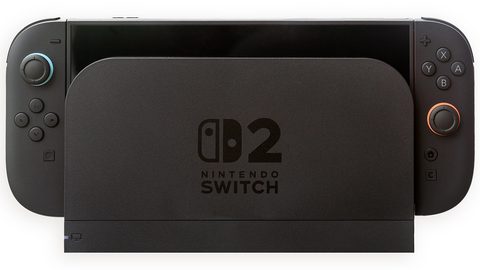 Switch docked output
列出Nintendo Switch底座模式下各遊戲的實際原生輸出解像度實測數據,解釋動態解像度運作原理及在4K電視上畫面模糊的原因。
Switch docked output
列出Nintendo Switch底座模式下各遊戲的實際原生輸出解像度實測數據,解釋動態解像度運作原理及在4K電視上畫面模糊的原因。
-
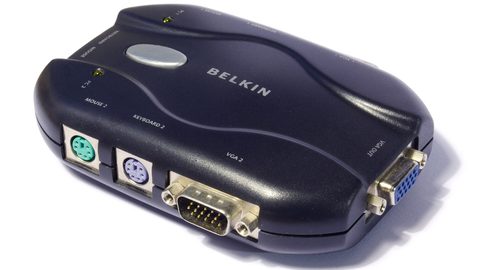 Switch on a monitor vs a TV
Nitendo Switch接電腦螢幕可透過點對點顯示獲得銳利像素,接4K電視則必然經過非整數倍縮放,兩者在延遲與銳利度上各有取捨。
Switch on a monitor vs a TV
Nitendo Switch接電腦螢幕可透過點對點顯示獲得銳利像素,接4K電視則必然經過非整數倍縮放,兩者在延遲與銳利度上各有取捨。
-
 Third-party docks and upscaler compatibility
第三方Nitendo Switch底座接駁mClassic或RetroTINK時常見的無訊號與畫面閃爍問題,根源在於HDMI握手與供電。
Third-party docks and upscaler compatibility
第三方Nitendo Switch底座接駁mClassic或RetroTINK時常見的無訊號與畫面閃爍問題,根源在於HDMI握手與供電。
Common Questions
Will an external scaler reduce input lag on my Switch?
An external scaler like the mClassic adds approximately 1-2ms of processing delay. Your TV's Game Mode adds 10-15ms at 1080p and 30-40ms at 4K. The scaler does not reduce the TV's lag, but it sends a higher-resolution signal that may allow the TV to do less internal processing. The net effect is usually a small improvement in perceived responsiveness, not a measurable reduction in total system lag.
Does the mClassic work with the Switch OLED dock?
Yes. The OLED dock (model HEG-007) outputs the same HDMI 1.4b 1080p signal as the base dock (HAC-007). The mClassic connects to the HDMI output of either dock and processes the signal identically.
Can I use the RetroTINK 4K with a Switch and a PlayStation 5 on the same TV?
Yes. The RetroTINK 4K accepts HDMI 2.0 input. You can connect the Switch dock to one HDMI input and the PlayStation 5 to another, or use an HDMI switch before the RetroTINK 4K. The RetroTINK 4K outputs 4K with HDR10 or HLG, which the PlayStation 5 can use. The Switch does not output HDR.
Why does my Switch look soft on a 4K TV even with the mClassic?
The mClassic applies a proprietary upscale and smoothing pass, but it cannot add detail that was never in the render. If the game renders at 720p internally, the mClassic receives a 1080p signal from the dock that is an upscale of 720p. The mClassic then upscales that 1080p signal to 1440p. The result is sharper than the TV's scaler alone, but it is still a guess built on a guess. Games that render at native 1080p, like Metroid Dread, will look sharp. Games that render at 720p or below will remain soft.
Is the mClassic worth it for a Switch Lite user?
No. The Switch Lite (HDH-001) does not have a dock and cannot output video over its USB-C port. The mClassic requires an HDMI input. If you use a third-party dock or adapter to connect the Switch Lite to a TV, the mClassic can process the signal, but the Switch Lite is not designed for docked use and the experience will be compromised. A standard Switch or Switch OLED is the correct hardware for TV play.
Read next
-
Third-party docks and upscaler compatibility
第三方Nitendo Switch底座接駁mClassic或RetroTINK時常見的無訊號與畫面閃爍問題,根源在於HDMI握手與供電。
-
Switch docked output
列出Nintendo Switch底座模式下各遊戲的實際原生輸出解像度實測數據,解釋動態解像度運作原理及在4K電視上畫面模糊的原因。
-
Best TV picture settings for Switch (game mode, sharpness, HDMI range)
Nintendo Switch接電視時,正確的遊戲模式、銳利度與HDMI範圍設定比更換線材更能改善畫質與降低延遲。
-
Fixing blurry Switch image
Switch在4K電視上模糊的根源是非整數倍縮放,從免費的電視設定調整到mClassic與RetroTINK 4K,提供分層修正方案。
-
Switch on a monitor vs a TV
Nitendo Switch接電腦螢幕可透過點對點顯示獲得銳利像素,接4K電視則必然經過非整數倍縮放,兩者在延遲與銳利度上各有取捨。
-
Switch 2 vs Switch OLED
比較Switch 2與Switch OLED的畫面輸出規格差異,分析新主機內置升頻能力是否令mClassic等外置升頻器變得不再必要。