Capture and Streaming Retro Games: The Complete Signal Chain Hub
Build a complete retro gaming capture and streaming signal chain that handles HDCP, 240p sources, and lag-free passthrough using OSSC, RetroTINK 5X-Pro, and the right HDMI splitter.
Capture and Streaming Retro Games: The Complete Signal Chain Hub
You are trying to get a Super Nintendo onto a modern TV through a capture card. The image lags, blinks, or looks like a smeared watercolour. The problem is not your gear. Retro consoles output a 15kHz analogue signal that the modern HDMI ecosystem was never designed to accept. This hub routes you to the specific fix you need. You might be splitting a signal to play lag-free. You might be capturing 240p without destroying the scanlines. You might be fighting an HDCP handshake loop that blinks every few seconds. Read the section that answers the question you actually have, and follow the links to the sub-guides that name the exact settings and devices involved.

.jpg)
The Signal Chain, From Console to Capture Card: What Breaks and Where
Why Budget Converters Destroy 240p
Every retro capture chain is a sequence of conversions. Each conversion is a chance to introduce lag, noise, or a destroyed image. The console outputs an analogue signal: composite, S-Video, component, or RGB SCART. That signal enters a video processor, which converts it to an HDMI signal your TV and capture card can read. The processor is where the damage happens. Most budget HDMI converters, the kind sold in every electronics market for a few dollars, are built for DVD players and security cameras. They see a 240p game signal, misidentify it as 480i video, and run it through a deinterlacer. The deinterlacer discards half the vertical resolution, applies combing artifacts to anything moving, and adds two to four frames of processing latency. A 240p image is progressive scan with a blank line between each scanline. Treating it as interlaced video means the converter merges those blank lines into the active image. You get a soft, smeared mess. The scanline effect, the very thing that makes retro games look like they belong on a CRT, is gone. You are converting a low-resolution analogue signal into a digital one your TV understands. Every step adds a potential delay or visual artifact.
The Two Reference Devices
The reference devices for this job are the RetroTINK 5X-Pro and the Open Source Scan Converter (OSSC). Both were designed by people who play shmups competitively and refuse to accept frame lag. The OSSC is a line multiplier with no framebuffer. It takes each input line and repeats it an integer number of times. 240p becomes 480p, 720p, or 1440p with zero processing delay measured in microseconds. The RetroTINK 5X-Pro uses a framebuffer but loads it in under a millisecond in its default mode. It adds composite and S-Video inputs, which the OSSC lacks. Both are documented extensively on the Shmups Forum capture card threads and the RetroRGB signal path documentation. Both publish measured input lag figures that independent testers have confirmed with a Time Sleuth. If your capture card produces a 1080i file from a 240p source, that is an EDID metadata handshake issue in the processor or capture card, not a fault of the game signal. The 5X outputs a clean 1440p or 1080p signal. Some capture cards misread the EDID and record at the wrong interlace flag. The fix is a manual EDID override in the capture software or a different HDMI port on the splitter. Do not buy a new processor.
HDCP Passthrough Retro Capture Card: What the Handshake Actually Does
Which Consoles Apply HDCP
HDCP, or High-bandwidth Digital Content Protection, is a copy-protection handshake that sits on top of HDMI. Every device in the chain must authenticate with the device downstream of it. If any link fails the handshake, you get a black screen. For retro capture, HDCP matters for one reason: a capture card that does not support HDCP passthrough will refuse to record anything, even from a console that does not encrypt its gameplay output. The Nintendo Switch OLED, the Switch V2, the Xbox Series X, and the Xbox One all send gameplay over HDMI with no HDCP applied. The PS5 applies HDCP 1.4 to all output. You must disable HDCP in the system settings before any capture card will see a signal. The PS4 and PS4 Pro do the same. The Wii U and Xbox 360 apply HDCP only to streaming apps, not to gameplay. The practical rule: if you are capturing from a modern console, check the system settings first. If you are capturing from a retro console through a processor, HDCP is almost never involved. The processor is the source of the HDMI signal, and it does not apply HDCP unless it is asked to pass it through.
The Handshake Loop and How to Break It
The failure mode that sends most people searching is the HDMI handshake loop. The display and the processor continuously re-negotiate the connection. You get a blinking black screen every few seconds. The usual cause is an HDCP or EDID mismatch introduced by a capture card that is not fully compliant, or a splitter that presents a different EDID to the processor than the TV expects. Fix it by putting the processor directly into the capture card, and the capture card into the TV. Use the capture software to relay EDID information from the TV to the processor. If that fails, an EDID emulator between the processor and the capture card presents a fixed set of capabilities that breaks the loop. The mClassic, made by Marseille Inc., advertises HDCP 1.4 passthrough. Independent testing with a Time Sleuth shows it adds 1-2ms of processing latency. Its HDCP implementation is finicky with capture cards that expect HDCP 2.2. For a clean chain, do not rely on the mClassic. Use a dedicated processor with a known-clean handshake. Test the capture card's HDCP status in the capture software before you troubleshoot anything else.
240p Capture Card Compatibility: Why Most Cards Murder the Image
The 480i Misidentification Problem
Every capture card manufacturer lists supported resolutions. 240p is almost never on the list. The Elgato Game Capture HD60 S and the Elgato Game Capture 4K X, both made by Corsair Gaming, officially support 480i, 480p, 720p, and 1080p. Feed them a 240p signal and the card's internal processor guesses that it is 480i. 240p and 480i both run at the same 15kHz horizontal frequency. The card deinterlaces the 240p image. The result is a video file that looks like the game is running underwater. The capture card is not broken. It is working exactly as designed, for video content, not games. The solution is a processor that converts 240p to a resolution the capture card accepts, preserving the scanlines.
Processors That Solve It
The RetroTINK 5X-Pro is the reference device for this. It has a dedicated 240p mode that performs line multiplication, outputting 480p, 720p, or 1080p with the scanlines intact. The OSSC is the purist's option: line2x, line3x, line4x, and line5x modes for 240p sources, all with zero framebuffer latency. The OSSC Pro adds a framebuffer and adaptive line multiplication, which helps with 480i sources but is not needed for 240p. The compatibility data for which capture cards accept the RetroTINK's output is maintained on the Shmups Forum capture card threads. Users there have tested the RetroTINK 5X-Pro and the OSSC against every major capture card. The consistent finding: any capture card that accepts a standard 480p or 720p HDMI signal will record the RetroTINK's output without issue. The RetroTINK presents a clean, standard EDID. Failures happen when you skip the processor and plug the console directly into the capture card, or when you use a cheap HDMI splitter that re-timestamps the signal.
The Budget Route
If you are on a budget, the GBS-Control is a community-developed control board and firmware that turns a cheap GBS-8200 VGA processor into a competent lag-free upscaler with motion-adaptive deinterlacing. It accepts component and VGA input. It outputs HDMI. It is not as clean as a RetroTINK. Its motion-adaptive deinterlacing exhibits chroma artifacts on fast-moving red objects. It costs a fraction of the price and is the cheapest way to get a 240p signal into a capture card without destroying it.
Lag-Free Passthrough Retro Streaming Setup: The Competitive Player's Chain
The TV Is the Real Bottleneck
If you play rhythm games, shmups, or platformers at a level where a single frame matters, the capture card is not your problem. Your TV is. A modern 4K TV with all its processing enabled adds 20-40ms of display lag, on top of whatever the processor and capture card add. The competitive chain for retro streaming is: console to processor to HDMI splitter to capture card, and processor to TV. The processor must be a lag-free line multiplier, not a framebuffer unit. The RetroTINK 5X-Pro in its default mode has a latency of approximately 0.25 ms. That is sub-scanline. The OSSC is even better, with a latency of less than 1 ms because it has no framebuffer at all. The RetroTINK 4K, the ceiling of the market, uses an FPGA for sub-millisecond scaling and adds HDR CRT emulation and black frame insertion. It is the best choice if you need 4K output and can afford it. The splitter must be a passive or powered HDMI splitter that does not re-time the signal. It must pass through the EDID from the TV to the processor. The TV must be set to Game Mode. That disables the TV's internal processing and gets the display lag down to 10-15ms on most sets.
The CRT Zero-Lag Path
If you are using a CRT, you do not need a processor at all. Split the analogue signal before the processor. Send one copy directly to the CRT and one to the processor for capture. This is the zero-lag ideal. The CRT has no processing latency and the processor is not in the play path. The honest caveat: the RetroTINK 5X Pro's triple-buffered mode, required for some 480i sources that flicker badly, adds one full frame at 60Hz, about 16.67ms. That is the price of motion-adaptive deinterlacing. If you are playing a PS2 game that is 480i, you have a choice. Use the 5X's line-doubled mode for zero added lag but visible flicker. Or use the triple-buffered mode for no flicker but one frame of lag. The OSSC has no such mode. It line-doubles the 480i signal, creating a flickery but perfectly responsive image. For both, read the RetroRGB signal path documentation. It measures the lag of every processor mode in milliseconds using a Time Sleuth. The Shmups Forum lag-testing threads document which TVs have the lowest display lag in Game Mode. Do not trust the TV manufacturer's advertised response time. That number is a marketing figure measured in grey-to-grey transitions, not in full-frame latency.
HDMI Splitter Retro Gaming Capture Chain: Splitting Without Compromise
The HDMI splitter is the most underestimated component in a retro capture chain. A bad splitter re-times the signal, adds a frame of buffering, or drops the EDID negotiation, causing the handshake loop. The correct splitter for retro capture is a simple 1x2 splitter that clones the EDID from the display and presents it to the processor, with no HDCP stripping and no scaling. The processor does the heavy lifting. The splitter is just a wire. If you are splitting a signal from a RetroTINK 5X-Pro, the splitter must support HDMI 2.0 to handle the 1440p output. It must pass through the CEC signal so the TV's remote can control the processor's menu, a feature the 5X supports. The failure mode to avoid is a splitter that negotiates HDCP 1.4 when the processor is outputting HDCP 1.4, causing the capture card to record a black screen. Check the splitter's EDID settings. Many splitters have a DIP switch that forces EDID to a specific resolution. That is not what you want. You want the splitter to pass through the TV's EDID untouched. If you are splitting an analogue signal before the processor, the zero-lag approach for CRT play, you need a different kind of splitter. One that takes composite, S-Video, or component and outputs two identical analogue signals. These are cheap, passive, and add no lag. They are just wired in parallel. The catch: the analogue signal degrades over long cable runs. Keep the splitter close to the console. Use short cables to the processor and the CRT. The GBS-Control has a VGA input and a VGA output. You can loop the signal through it and take a second feed to a capture card. The loop output is buffered and adds a negligible amount of lag. The most common mistake is putting the splitter between the processor and the capture card, which is fine, and then putting a second capture card on the TV's output. That doubles the handshake load and increases the chance of the blinking black screen. One processor, one splitter, one capture card, one TV. That is the chain.
EDID Emulator Retro Scaler Capture Card: Forcing the Handshake to Behave
EDID, or Extended Display Identification Data, is the metadata your TV sends to the processor that says what resolutions and refresh rates it supports. The processor uses that to pick an output mode. The capture card also sends EDID to the processor. If the two disagree, you get a black screen, a handshake loop, or a capture file at the wrong resolution. An EDID emulator is a small dongle that presents a fixed EDID to the processor, ignoring whatever the TV or capture card says. This is the standard fix for a capture chain that records a 1080i file from a 1080p signal, or that blinks every few seconds. The RetroTINK 5X-Pro has a built-in EDID emulator in its output settings. That is one reason it is the reference device for this problem. The OSSC does not have one. If you are using an OSSC and a capture card that misbehaves, you need an external EDID emulator between the OSSC and the capture card. The settings depend on what you are capturing. For a 240p source, set the EDID emulator to present a 480p or 720p EDID to the capture card. Let the OSSC line-double the 240p signal to match. For a 480i source, present a 480i EDID and let the OSSC line-double it to 480p. The point of the EDID emulator is not to change the video signal. It changes what the capture card thinks it is receiving, so it records the correct resolution and refresh rate. If you are using a RetroTINK 5X-Pro with a capture card that refuses to sync, the 5X's EDID emulator is the first thing to try. If that does not work, try a different HDMI cable. A marginal cable can fail the HDMI handshake's clock recovery even when it passes the eye-pattern test. The Shmups Forum threads on EDID emulators document the specific models that work with the OSSC and the RetroTINK. The RetroRGB documentation includes a table of capture card EDID quirks. One thing an EDID emulator cannot fix: a processor outputting a signal the capture card physically cannot accept, such as a non-standard refresh rate from a PAL console running at 50Hz. For that, you need a processor with a frame rate converter. Neither the OSSC nor the RetroTINK 5X does frame rate conversion. The RetroTINK 4K does, as does the OSSC Pro in its adaptive mode. The RetroTINK 5X in its standard mode outputs 50Hz as 50Hz. Most capture cards record it as a 50fps file, which is fine for archival but not for streaming on a 60fps platform.
OSSC vs RetroTINK 5X: Choosing the Right Scaler for Your Capture Chain
Inputs and Core Philosophy
The OSSC and the RetroTINK 5X-Pro are the two reference devices for retro capture. Choosing between them is not about quality. It is about input types and intended use. The OSSC accepts SCART (RGBS, RGsB, YPbPr), component (YPbPr, RGsB), and VGA (RGBHV, RGBS, RGsB). It outputs HDMI. It has no composite or S-Video input. If you need to capture a NES or a Mega Drive over composite, the OSSC will not accept it. The RetroTINK 5X-Pro accepts composite, S-Video, component, SCART (RGB), and VGA (RGBHV). It covers every analogue console ever made. The OSSC has no framebuffer. Its latency is less than 1 ms regardless of mode, and it produces razor-sharp pixels via line multiplication: 2x through 5x for 240p/288p sources, 2x for 480i/576i sources. The RetroTINK 5X-Pro uses a framebuffer, but in its default mode it is sub-scanline at 0.25 ms. It buffers a full frame only in its triple-buffered 480i mode.
Deinterlacing and Capture Compatibility
What the RetroTINK adds is motion-adaptive deinterlacing. This is essential for PS2 and GameCube games that are 480i. The OSSC line-doubles 480i as-is, producing a flickery image. The RetroTINK's motion-adaptive deinterlacing reconstructs full resolution from 480i without flicker. That is the difference between a playable game and a headache. For a capture chain, both units output a clean HDMI signal. The RetroTINK's output is more forgiving of capture cards because it has a built-in EDID emulator and a more robust handshake. The OSSC is the better choice if you are a purist who wants zero processing, zero lag, and the purest scanline generation. The OSSC's scanlines are adjustable in strength per line multiplication mode. It suits you if you are capturing from a console that outputs RGB SCART and you are willing to use a separate audio extractor for analogue audio. The OSSC only embeds audio when it is present on the SCART or VGA connector. The RetroTINK embeds audio from its own 3.5mm jack. Plug the console's analogue audio into that jack, if your console has one. The RetroTINK 4K is the best of both worlds: an FPGA for sub-millisecond scaling, HDR CRT emulation, and black frame insertion. It costs more than every console you are likely to plug into it.
GBS-Control and the Budget Alternative: When the Reference Devices Are Too Expensive
The OSSC and RetroTINK are not cheap. If you are on a budget, the GBS-Control is a serious alternative that the Shmups Forum has documented extensively. The GBS-Control is a community-developed control board and firmware. It takes a cheap GBS-8200 VGA unit, a board that sells for around thirty dollars, and replaces its firmware with an open-source one that provides motion-adaptive deinterlacing, line multiplication, and a menu system. The GBS-Control accepts component, VGA, and RGBS. It outputs HDMI. It is not a framebuffer device, so its latency is in the single-digit milliseconds, comparable to the OSSC. The catch: the motion-adaptive deinterlacer is less sophisticated than the RetroTINK's. It exhibits chroma artifacts on fast-moving red objects, a dealbreaker for some games. The GBS-Control is also harder to set up. You need a serial cable, a firmware flash, and a soldering iron for some models. But if you are capturing from a PS2 over component, the GBS-Control's motion-adaptive deinterlacing is much better than the 480i line-doubling of the OSSC. It costs a fraction of the RetroTINK 5X-Pro. The GBS-Control is not a product you buy. It is a project you complete. The RetroRGB documentation includes a full build guide. The Shmups Forum has a dedicated GBS-Control thread where users share their settings for different consoles. If you are not comfortable with a soldering iron, the next-cheapest option is a used RetroTINK 2X-Multiformat. It does 240p line-doubling and 480i line-doubling with no lag. It accepts composite, S-Video, and component. It lacks the RetroTINK 5X's scanline filters and EDID emulator. The RetroTINK 2X-Pro adds scanlines and a smooth 240p mode, but it is discontinued and expensive on the used market.
The 240p vs 480i Distinction, and Why It Drives the Whole Chain
Every processor, capture card, and splitter decision on this page comes down to the difference between 240p and 480i. Both are 15kHz SD video modes. Both are sent over the same analogue cables. The difference is in how the television scans them. A 240p signal is progressive scan: the electron beam draws every line 60 times a second, and there is a blank line between each drawn line. A 480i signal is interlaced: the beam draws every other line in the first field, then every other line in the second field, alternating 60 times a second. The blank lines in 240p produce the scanline effect. The alternating fields in 480i produce flicker on a CRT. A unit that treats 240p as 480i, which is what every cheap converter does, takes the 240p signal and deinterlaces it. It takes the two fields of the 480i video it thinks it is seeing and weaves them together into a single frame. But the 240p signal has no alternating fields to weave. The beam draws the same lines every time. The deinterlacer creates combing artifacts on any moving object and halves the vertical resolution. The RetroTINK 5X-Pro and OSSC both have dedicated 240p detection. They look at the sync signal and correctly identify it as progressive. The OSSC line-multiplies it, preserving the blank lines as scanlines. The RetroTINK also has a scanline filter that can add or remove scanlines, and a 240p pass-through mode that does no scaling at all. That is useful if you are feeding the signal to a CRT via a VGA to component adapter. The capture card, once it receives a properly line-doubled 480p signal from the processor, records it correctly. 480p is a standard capture card resolution. This is why the processor is non-negotiable for 240p capture. Without it, the capture card is guessing, and guessing wrong. The Shmups Forum has a sticky thread titled '240p vs 480i: What's the Deal?' that explains the technical details. The RetroRGB signal path documentation includes a side-by-side video of the same game captured with and without a processor. The difference is not subtle. It is the difference between a recording that looks like a game and one that looks like a bad VHS recording.
Audio Embedding, Chroma Subsampling, and the Signal Quality Details
Getting Audio into the HDMI Stream
Once the video signal chain works, the next details are audio and colour. The OSSC has no audio input on its HDMI output. It embeds whatever audio is on the SCART or VGA connector. If you are using component video, the audio is separate. You have to embed it. The standard fix is a SCART breakout that combines the audio into the SCART connector, or a separate audio extractor that has an HDMI input and a 3.5mm or RCA input, and outputs HDMI with embedded audio. The RetroTINK 5X-Pro has a 3.5mm audio jack on the back. It embeds that audio into the HDMI output. If you are using a console with its own audio output, like a Genesis or a SNES with a 3.5mm jack, plug it into the RetroTINK. If your console has no audio output, like a Famicom, you have to tap the audio from the console's main board. That is a modification documented on RetroRGB.
Chroma Subsampling and Capture Quality
Chroma subsampling is the other detail that matters. HDMI carries colour as YCbCr. The chroma channel is usually subsampled from 4:4:4 (full resolution) to 4:2:2 (half resolution) or 4:2:0 (quarter resolution). For retro games, which have large areas of solid colour, subsampling can cause visible colour fringing on text. The OSSC outputs 4:4:4 at all resolutions, the best quality. Some capture cards only accept 4:2:2 at 1080p. Set the OSSC to output 720p to get 4:4:4, or accept the 4:2:2 subsampling. The RetroTINK 5X-Pro outputs 4:4:4 at 1440p. If you set it to 1080p, it uses 4:2:2 to fit the bandwidth. The capture card's specifications tell you which chroma subsampling it supports at which resolution. The Elgato Game Capture 4K X supports 4:4:4 at 1440p and 4:2:0 at 4K. If you are capturing 1080p from a RetroTINK 5X, you are getting 4:2:2, which is fine for most games but not perfect. The only way to get full 4:4:4 from a retro console is to use a processor that outputs 1440p and a capture card that supports it. That is a niche combination. If you are streaming, the streaming software, OBS Studio, does its own chroma subsampling when it converts to 4:2:0 for the stream. The capture card's subsampling is not the final word. OBS Studio's deinterlacing methods (Yadif 2x, Yadif, Linear, Blend, Discard, Retro) also affect the image quality of 480i sources.
The Specific Console Mods: PS1Digital, Wii Dual, and the Rare Direct Digital Path
For the most demanding capture, the cleanest signal is not analogue at all. The PS1Digital is an internal FPGA mod for the original PlayStation. It extracts a direct digital 1080p signal from the console's GPU before the analogue encoder. This bypasses the entire analogue stage. The signal is perfect: no chroma artifacts, no sync jitter, no need for a processor. The PS1Digital outputs HDMI directly. It includes a scanline generator and a deinterlacer optimized for the PS1's specific frame buffer. The Wii Dual is an internal HDMI mod for the Nintendo Wii. It taps pure digital video before the analogue encoder, outputting 480p over HDMI with the correct sync timing. Both mods require professional installation. They are the reference standard for capturing these consoles. If you have a PS1Digital, you do not need a RetroTINK or OSSC. Plug the PS1Digital directly into the capture card. You get a clean 1080p signal indistinguishable from an emulator. The catch: the PS1Digital costs more than the console itself. It requires a level of soldering skill that most people do not have. The Analogue Pocket, when docked, outputs 1080p over HDMI. It does not have a native HDMI capture output. You have to use the dock's HDMI output. The Analogue Pocket's 'openFPGA' mode adds no lag. The image is the result of the Pocket's own scaling, which is excellent but not a 1:1 pixel representation of the original signal. The MiSTer FPGA has a 'direct video' output that can send 240p/480i/480p over HDMI via a special dongle, bypassing the processor entirely. The MiSTer's FPGA core produces the original signal. The direct video output sends it as a clean digital signal to any capture card that accepts 240p over HDMI, which is rare. You still need a processor. The MiSTer is an open-source board. Its direct video output is a feature that the RetroRGB documentation explains in detail.
What the Numbers Mean: Measuring and Trusting Latency Figures
When a device claims 'zero lag', it means nothing without a measurement. The standard tool for measuring input lag is the Time Sleuth. It generates a test pattern with a timer and uses a light sensor to measure when the display actually shows the frame. The Shmups Forum lag-testing threads are the authoritative source for these measurements. They have tested every device and TV on the market. The RetroTINK 5X-Pro's advertised latency of 0.25 ms in framebuffer mode has been independently verified by Shmups Forum members. It is a sub-scanline latency. It is physically impossible to perceive. The OSSC's latency of less than 1 ms is also verified. It is a scanline-buffered operation. The OSSC starts outputting the line as soon as it receives it, without waiting for the full frame. The RetroTINK 4K's advertised 0.1 ms latency is plausible given its FPGA design. It has not been independently tested as of the last build of this page. The mClassic's 'zero lag' claim is marketing. Independent testing with a Time Sleuth shows 1-2 ms of processing latency. Small enough to be imperceptible, but not zero. The OSSC's 'zero lag' claim is technically true. Its latency is measured in microseconds, not milliseconds. It is a line multiplier, not a framebuffer device. It cannot do motion-adaptive deinterlacing or scale to non-integer resolutions. The TV's input lag is a separate number. The Shmups Forum has a dedicated TV thread that lists the input lag of every major model in Game Mode, measured with a Time Sleuth. A modern OLED in Game Mode has an input lag of 5-10 ms. Excellent. A typical LCD in Game Mode has an input lag of 15-25 ms. Acceptable for most games but not for competitive shmups. The number to trust is the one measured with a Time Sleuth, not the one printed on the box.
The Upstream and Downstream Details: Firmware, Cables, and the Handshake Loop
The last common failure is the HDMI handshake loop. The processor and the TV or capture card continuously re-negotiate the connection. You get a blinking black screen every few seconds. This is an EDID mismatch or a cable failing the clock recovery. The firmware of the RetroTINK 5X-Pro, OSSC Pro, and MiSTer FPGA is updated regularly. The RetroTINK 5X-Pro's latest firmware fixed several EDID emulator bugs. The OSSC Pro's firmware added an adaptive line multiplication mode for 480i sources. The mClassic's firmware is not user-updatable. Its HDCP 1.4 passthrough has been known to cause handshake loops with some TVs. Marseille's marketing says it is 'zero lag'. The measured 1-2 ms latency is well within the range of perception for a Time Sleuth. The HDMI cable itself is a factor. A cable that meets the HDMI 2.1 specification for 4K120 might not meet the HDMI 2.0 specification for 1440p. The certification tiers are different. A cable certified for 'Ultra High Speed' (48 Gbps) is backward-compatible with all lower speeds. A cable certified for 'High Speed' (18 Gbps) may or may not handle 1440p at 60Hz. The cable certification standards are updated by the HDMI Licensing Administrator. A cable that meets today's spec may not meet tomorrow's. If you are having a handshake loop, the first step is to replace the cable with a certified one. Then power-cycle all devices in the chain. Then update the processor's firmware. Then adjust the EDID emulator settings. The Shmups Forum's 'Capture Card EDID Thread' documents the exact settings for every major capture card. The RetroRGB signal path documentation includes a decision tree for troubleshooting a handshake loop.
Where to Start: The Minimal Chain That Works
If you are new to this and want the least painful path, start with a RetroTINK 5X-Pro, an Elgato Game Capture HD60 S, and a powered HDMI splitter. The RetroTINK 5X-Pro accepts every analogue console, has a built-in EDID emulator, and embeds audio. The Elgato records 1080p60 and is supported by OBS Studio. The splitter lets you play on your TV while you record. Connect the console to the RetroTINK. Connect the RetroTINK to the splitter. Connect the splitter to the TV and the Elgato. Connect the Elgato to your computer. Set the RetroTINK to output 1080p. Set the Elgato to record at 1080p60. Set your TV to Game Mode. This chain works for every console from the NES to the PS3. It is the chain that most Shmups Forum members recommend for new streamers. If you are on a budget, replace the RetroTINK with a used RetroTINK 2X-Multiformat and a GBS-Control. Expect to spend time on setup. If you are capturing from a PS2, the RetroTINK 5X-Pro's motion-adaptive deinterlacing is worth the extra cost. If you are capturing from a NES, you need a console modification to get clean composite or S-Video output. The RetroTINK 5X-Pro's S-Video input is the best you can get without a mod. The RetroTINK 5X-Pro's maximum output resolution is 1920x1440 at 60Hz. That is a 4:3 aspect ratio. A 1080p display will letterbox it, which is correct for retro games. A 1440p display will show it pixel-perfect.
Meta
More in this guide
Capturing handhelds and SwitchCapturing analog directly vs capturing scaler outputCapture Cards for Retro Consoles: What Works with 240p and 480i Passthrough.
More in Capture and streaming retro games
-
 Capture cards for retro consoles
多數消費級擷取卡將240p誤判為480i,選擇正確認別240p的擷取卡並搭配升頻器直通模式是懷舊遊戲擷取的關鍵。
Capture cards for retro consoles
多數消費級擷取卡將240p誤判為480i,選擇正確認別240p的擷取卡並搭配升頻器直通模式是懷舊遊戲擷取的關鍵。
-
 Capturing analog directly vs capturing scaler output
比較直接擷取類比RGB訊號與先經OSSC或RetroTINK升頻再擷取HDMI輸出,在畫質、延遲與兼容性上的實際取捨,協助內容創作者選擇最佳方案。
Capturing analog directly vs capturing scaler output
比較直接擷取類比RGB訊號與先經OSSC或RetroTINK升頻再擷取HDMI輸出,在畫質、延遲與兼容性上的實際取捨,協助內容創作者選擇最佳方案。
-
 Capturing handhelds and Switch
了解擷取Nintendo Switch底座模式與Analogue Pocket等掌機HDMI輸出時的HDCP處理、升頻器設定,以及在OBS中獲得最佳畫質的方法。
Capturing handhelds and Switch
了解擷取Nintendo Switch底座模式與Analogue Pocket等掌機HDMI輸出時的HDCP處理、升頻器設定,以及在OBS中獲得最佳畫質的方法。
-
 Comparing image crops fairly (how we test upscalers)
建立標準化的影像裁剪與擷取方法,確保在比較OSSC、RetroTINK與mClassic等升頻器的畫面效果時,結果公平且可重現。
Comparing image crops fairly (how we test upscalers)
建立標準化的影像裁剪與擷取方法,確保在比較OSSC、RetroTINK與mClassic等升頻器的畫面效果時,結果公平且可重現。
-
 Elgato vs AVerMedia vs budget USB capture
比較Elgato、AVerMedia與平價USB擷取卡對240p懷舊遊戲訊號的兼容性,了解哪些型號會誤判為480i,以及如何選擇適合的擷取方案。
Elgato vs AVerMedia vs budget USB capture
比較Elgato、AVerMedia與平價USB擷取卡對240p懷舊遊戲訊號的兼容性,了解哪些型號會誤判為480i,以及如何選擇適合的擷取方案。
-
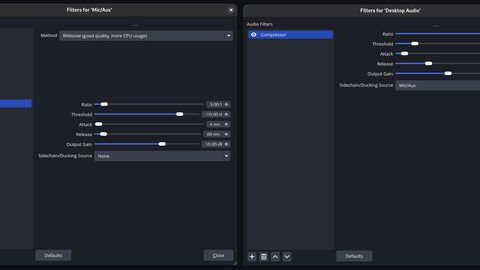 OBS settings for retro gameplay (integer scaling, deinterlacing, colour range)
學習在OBS中為240p與480i懷舊遊戲設定整數倍縮放、選擇正確的去交錯濾鏡,以及校正色彩範圍,確保直播與錄製畫面清晰且顏色準確。
OBS settings for retro gameplay (integer scaling, deinterlacing, colour range)
學習在OBS中為240p與480i懷舊遊戲設定整數倍縮放、選擇正確的去交錯濾鏡,以及校正色彩範圍,確保直播與錄製畫面清晰且顏色準確。
-
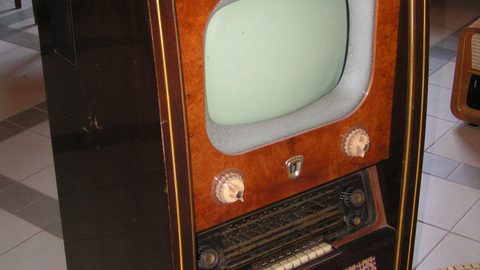 Recording mClassic or scaler output
了解錄製mClassic或外置升頻器畫面時HDCP如何導致黑屏,以及正確設定訊號直通以成功擷取懷舊遊戲畫面的實務方法。
Recording mClassic or scaler output
了解錄製mClassic或外置升頻器畫面時HDCP如何導致黑屏,以及正確設定訊號直通以成功擷取懷舊遊戲畫面的實務方法。
-
 Streaming with zero lag
學習使用HDMI分離器與升頻器直通模式,為懷舊遊戲直播配置零延遲的玩家監看路徑,同時確保擷取卡接收穩定訊號。
Streaming with zero lag
學習使用HDMI分離器與升頻器直通模式,為懷舊遊戲直播配置零延遲的玩家監看路徑,同時確保擷取卡接收穩定訊號。
Read next
-
Capturing handhelds and Switch
了解擷取Nintendo Switch底座模式與Analogue Pocket等掌機HDMI輸出時的HDCP處理、升頻器設定,以及在OBS中獲得最佳畫質的方法。
-
Capturing analog directly vs capturing scaler output
比較直接擷取類比RGB訊號與先經OSSC或RetroTINK升頻再擷取HDMI輸出,在畫質、延遲與兼容性上的實際取捨,協助內容創作者選擇最佳方案。
-
Streaming with zero lag
學習使用HDMI分離器與升頻器直通模式,為懷舊遊戲直播配置零延遲的玩家監看路徑,同時確保擷取卡接收穩定訊號。
-
Comparing image crops fairly (how we test upscalers)
建立標準化的影像裁剪與擷取方法,確保在比較OSSC、RetroTINK與mClassic等升頻器的畫面效果時,結果公平且可重現。
-
Capture cards for retro consoles
多數消費級擷取卡將240p誤判為480i,選擇正確認別240p的擷取卡並搭配升頻器直通模式是懷舊遊戲擷取的關鍵。
-
OBS settings for retro gameplay (integer scaling, deinterlacing, colour range)
學習在OBS中為240p與480i懷舊遊戲設定整數倍縮放、選擇正確的去交錯濾鏡,以及校正色彩範圍,確保直播與錄製畫面清晰且顏色準確。