The Guide to External Retro Gaming Scalers: RetroTINK, OSSC, and How to Choose
Route to the right external retro gaming scaler by what you are trying to do, covering RetroTINK, OSSC, mClassic, and GBS-Control with setup values from each project's documentation.
Your Super Famicom looks like a smeared mess on your 4K OLED because every cheap HDMI converter treats 240p as 480i video, discarding half the vertical detail and adding two to four frames of input lag. The fix is an external scaler matched to your console, your screen, and your tolerance for delay. Choose by signal type and the resolution your screen wants. If you play interlaced PS2 games, deinterlacing quality becomes the deciding factor.
- Core Architectural Divide: Line multiplication (OSSC) vs. framebuffer scaling (RetroTINK 5X). Line multipliers have no frame buffer and add microseconds of lag but cannot do non-integer scales or handle composite video. Framebuffer scalers capture a full frame, resample it, and support composite, S-Video, motion-adaptive deinterlacing, and CRT filters at the cost of sub-millisecond additional latency.
- Reference Designer: Mike Chi of RetroTINK LLC defines the modern lag-free scaling approach. His design philosophy prioritises sub-millisecond latency, accurate analogue-to-digital conversion, and CRT filter authenticity over feature count.
- Signal Hierarchy: RF is worst, composite is better, S-Video is better still, RGB and component are best. This is a fixed electrical truth based on signal separation.
- Critical Misdetection: A scaler that sees 240p as 480i discards half the vertical resolution and adds combing artifacts. The 240p test suite is the standard tool for verifying correct detection.

The Decision Tree: Input Signal Type First
Identify Your Console's Best Output
The first question is not which brand to buy but what signal your console actually produces. A NES or Famicom outputs composite video only, with RF as the fallback. A European SNES outputs RGB SCART natively. A Japanese Saturn outputs RGB via SCART but requires a different pinout than the European standard. A North American PlayStation 2 outputs component video (YPbPr) via three RCA jacks, and also RGB SCART if you have the right cable. A Wii outputs component natively and, on PAL models, RGB SCART. A GameCube with the Digital AV port (DOL-001 models only) can output component video via the official or HD Retrovision cable. A Dreamcast outputs VGA via its proprietary connector. A PlayStation 3 and Xbox 360 output HDMI natively, but their 480i and 480p game modes still benefit from a scaler with good deinterlacing.
Match Scaler Input To Signal Type
Match the scaler input to the console's best available output. If your console outputs composite or S-Video, the OSSC and OSSC Pro cannot accept those signals at all; you need a RetroTINK 5X-Pro or RetroTINK 4K, which have dedicated composite and S-Video inputs. If your console outputs RGB SCART or component, every scaler in the comparison accepts them except the mClassic, which is an HDMI dongle that expects a digital signal already. If your console outputs VGA, the OSSC and GBS-Control accept it natively; the RetroTINK 4K also accepts VGA; the RetroTINK 5X-Pro does not.
If you play multiple consoles with different signal types, the RetroTINK 5X-Pro or RetroTINK 4K cover the widest range: composite, S-Video, component, and RGB SCART in one box. That single box eliminates the need for external transcoders.
The Second Decision: Display Resolution and Deinterlacing Needs
Output Resolution By Screen Type
After the signal type, the second question is what your screen wants and whether you play interlaced games. A 4K OLED wants a 4K signal to avoid the TV's own scaling lag; the RetroTINK 4K outputs native 4K at sub-millisecond latency. A 1440p monitor or a 1080p projector wants a 1080p or 1440p signal; the RetroTINK 5X-Pro and OSSC Pro both output up to 1440p. A 1080p TV that handles 480p well can use the OSSC in line-multiplication mode. A 480p plasma or an old LCD that only accepts 480p over HDMI is best served by the RetroTINK 2X-Pro or 2X-Mini, which line-double 240p to 480p with zero lag.
Deinterlacing Quality And Frame Lock Speed
Deinterlacing quality separates the scalers into two tiers. The OSSC uses bob deinterlacing, which flickers on 480i content because it combines two fields that were captured at different moments. The OSSC Pro adds motion-adaptive deinterlacing, which reconstructs a full progressive frame from 480i without flicker. The RetroTINK 5X-Pro and RetroTINK 4K both offer motion-adaptive deinterlacing, along with weave and blend modes. The GBS-Control also offers motion-adaptive deinterlacing, but it exhibits chroma artifacts on fast-moving red objects due to the limited memory bandwidth of the GBS-8200 board. If you play PS2, Saturn, or Dreamcast games that switch between 240p menus and 480i gameplay, motion-adaptive deinterlacing is not optional; bob deinterlacing will produce a flickering, unstable image during those transitions.
Frame lock speed matters here too. A PS1 game that switches from a 240p menu to a 480i gameplay sequence forces the scaler to re-sync. The RetroTINK 5X-Pro locks in under a second. The OSSC takes two to three seconds, during which the screen goes black. The GBS-Control takes one to two seconds. The mClassic, being an HDMI processor, does not re-sync at all because it never sees the analogue resolution change; it processes whatever 480i or 240p signal the upstream HDMI converter sends, which means the upstream converter's detection quality becomes the bottleneck.
| Device | Input Signal Types | Scaling Method | Max Output Resolution | Deinterlacing | Latency | Best For |
|---|---|---|---|---|---|---|
| RetroTINK 4K | Composite, S-Video, Component, SCART, VGA, HDMI 2.0 | Polyphase scaler, integer and non-integer modes | 4K60 (3840×2160) | Motion-adaptive, weave, bob, blend | ~0.25 ms at 4K (framebuffer off) | 4K displays; HDR CRT simulation; multi-format input collection |
| RetroTINK 5X-Pro | Composite, S-Video, Component, SCART | Polyphase scaler, integer scaling | 1440p (2560×1440) | Motion-adaptive, weave, bob, blend | <1 ms (framebuffer off) | 1440p displays; mixed console collection with composite and S-Video consoles |
| OSSC Pro | SCART, Component, VGA, HDMI | Polyphase scaler, integer scaling, adaptive line multiplication | 1440p (2560×1440) | Motion-adaptive, weave, bob, blend | <1 ms (framebuffer off) | RGB/component consoles; users who want OSSC lineage with modern deinterlacing |
| OSSC (rev 1.8) | SCART, Component, VGA | Line multiplication (2×, 3×, 4×, 5×), integer scaling | 1920×1200 | Bob, passthrough | <1 ms (no framebuffer) | 240p-only consoles; lag-sensitive players using RGB or component; no composite needed |
| GBS-Control | VGA (RGBHV, RGBS, RGsB), Component via breakout | Framebuffer scaling, integer scaling, downscaling | 1920×1080 | Motion-adaptive, weave, bob | ~1–2 frames (framebuffer mode) | Budget builds; VGA-source consoles; downscaling 480p to 240p for CRTs |
| mClassic | HDMI (1080p input only) | Context-adaptive anti-aliasing, sharpening, upscale | 1440p frame (1080p active image) | None (pass-through) | <1 ms processing | HDMI-source consoles (Switch, PS3, Xbox 360); players who want anti-aliasing without a full scaler |
RetroTINK 5X Setup Configuration
Input And Output Settings
The RetroTINK 5X-Pro menu system is the reference for framebuffer scaler configuration. Press the menu button on the remote or the front panel. The critical settings, in order of importance, are input, output, and processing.
Set the input to match your console's signal. The 5X auto-detects composite, S-Video, component, and RGB SCART, but manual override exists in the Input menu. If you use RGB SCART from a European SNES, set Input to RGBS. If you use component from a PlayStation 2, set Input to YPbPr. If the auto-detection misidentifies a 240p signal as 480i, the screen will show combing artifacts on horizontal edges; switch the Input Deinterlace setting to Off or to 240p Passthrough to force correct detection.
Set the output resolution to your screen's native resolution. The 5X outputs 480p, 720p, 1080p, and 1440p. A 1080p TV should use 1080p output with integer scaling enabled. Integer scaling produces black borders on the left and right because 240p×4 equals 960p, not 1080p; the borders are correct and prevent uneven pixel sizes. If you prefer a full-screen image, disable integer scaling and let the polyphase scaler fill the screen; the image will be slightly softer but free of borders.
Scanlines And Profiles
The Scanlines menu controls CRT simulation. The 5X offers slot mask, aperture grille, and shadow mask presets, plus adjustable scanline strength from 0 to 100. A strength of 40 to 60 on a 1080p screen approximates a consumer Trinitron. The FirebrandX reference profiles, available on the RetroTINK wiki, provide calibrated CRT filter settings for PVM and BVM targets.
The Profiles menu lets you save up to 16 configurations. Assign one profile per console. When you switch consoles, the 5X can auto-load the correct profile based on the input signal's horizontal sync frequency. This is the single most useful feature for a multi-console setup.
OSSC Line Multiplication Settings
Setting The Multiplication Factor
The OSSC is a line multiplier with no framebuffer, meaning it repeats each input line a fixed number of times. The setting that controls this is Line Multiplication, or Lx. A 240p signal at 2× line multiplication outputs 480p. At 3× it outputs 720p. At 4× it outputs 960p. At 5× it outputs 1200p. The OSSC's maximum output is 1920×1200, so 5× is only possible if your screen accepts that resolution.
Set the line multiplication factor to match your screen's native resolution as closely as possible without exceeding it. A 1080p screen should use 4× line multiplication, which outputs 960p. The screen will scale the remaining 120 lines. A 1440p screen should use 5×, outputting 1200p, leaving 240 lines for the screen to scale. Using 3× on a 1080p screen produces 720p, which the screen then upscales to 1080p; this adds the TV's own scaling lag, which defeats the purpose of a low-lag scaler.
Sync Stability And Input Limitations
The OSSC has no composite or S-Video input. If you need to use a NES or Famicom, you must add an external composite-to-RGB transcoder before the OSSC. The RetroTINK 2X-Pro or 2X-Mini is a simpler alternative for those consoles.
The OSSC's Sync menu controls sync tolerance. The default setting works for most consoles, but a SNES that drops sync during white flashes needs the Sync LPF (low-pass filter) enabled and the Sync Threshold set to Low. This filters out the voltage dip on full-white frames. The OSSC Pro adds an adaptive line multiplication mode that automatically switches between 2× and 4× when it detects a resolution change, eliminating the black screen delay on PS1 title transitions.
GBS-Control Budget Build Guide
Hardware And Firmware Setup
The GBS-Control is a community firmware replacement for the GBS-8200 VGA scaler board, which costs roughly 50 HKD from Sham Shui Po electronics shops. The hardware base is the GBS-8200 V4.0 board. You flash the open-source gbs-control firmware via a USB-to-serial adapter, then configure the scaler through a web interface over Wi-Fi or USB.
The GBS-Control accepts VGA input (RGBHV, RGBS, RGsB) and component video via a VGA breakout cable. It does not accept composite or S-Video. Its maximum output is 1920×1080 at 60 Hz, via VGA or an add-on HDMI board. The scaling method is framebuffer-based, adding one to two frames of latency. This is higher than the RetroTINK or OSSC, but acceptable for many action games if you are not a competitive player.
Deinterlacing Performance And The Build
The GBS-Control's motion-adaptive deinterlacing works well on 480i content from a PlayStation 2, but exhibits chroma artifacts on fast-moving red objects. If you play rhythm games or shmups that demand pixel-perfect colour, the RetroTINK 5X-Pro is a better choice. If you need to downscale 480p to 240p for a CRT monitor, the GBS-Control is the only scaler on this list that does that natively.
Build your own GBS-Control by sourcing a GBS-8200 board, a USB-to-serial adapter, a microSD card, and a 5V 2A power supply. The firmware installation guide and configuration web interface are documented on the gbs-control GitHub repository. The community forum on Shmups Forum provides troubleshooting for sync drop and chroma artifacts.
mClassic Dongle Compatibility List
How The Dongle Works
The mClassic is a plug-and-play HDMI dongle from Marseille Inc. that applies context-adaptive anti-aliasing, sharpening, and colour correction to an incoming HDMI signal. It is powered by the HDMI port itself, drawing up to 1 A at 5 V. It does not accept analogue video; it expects a clean digital 1080p input.
Connect the mClassic between your console's HDMI output and your screen. The physical switch on the dongle has three positions: Off (pass-through), Retro (scanline filter and colour boost), and HD (anti-aliasing and upscale to 1440p). The Retro mode is designed for 240p and 480i content that has already been upscaled to 1080p by another device; the mClassic itself cannot deinterlace or detect 240p. The HD mode applies a mild upscale to a 1440p frame, but the active image area remains 1080p; the extra pixels are not native data.
Compatibility And Power
The mClassic works with the Nintendo Switch, PlayStation 3, Xbox 360, and PlayStation 4. It works with the RetroTINK 5X-Pro when placed downstream: the RetroTINK outputs 1080p, and the mClassic applies anti-aliasing and upscales to 1440p. It does not work well with the OSSC because the OSSC outputs non-standard resolutions like 960p or 1200p, which the mClassic cannot process. It is not compatible with the GBS-Control's VGA output unless you add an HDMI converter first. The mClassic adds approximately 1 to 2 ms of processing latency, measured by independent Time Sleuth testing. Marseille marketing implies zero added lag; the gap is small but real.
If your screen's HDMI port cannot supply sufficient power, the mClassic will drop signal intermittently. Use the included Micro-USB power cable with a 5V 1A adapter if you experience black screens every few minutes.
More in this guide
More in External scalers: RetroTINK, OSSC and friends
-
 Chaining a scaler with an mClassic
分析將OSSC或RetroTINK的整數倍縮放輸出再經mClassic後處理的訊號鏈疊加效果,包括延遲累加幅度與對2D及3D遊戲畫質的實際影響。
Chaining a scaler with an mClassic
分析將OSSC或RetroTINK的整數倍縮放輸出再經mClassic後處理的訊號鏈疊加效果,包括延遲累加幅度與對2D及3D遊戲畫質的實際影響。
-
 Firmware updates for OSSC and RetroTINK (verified procedures)
-
 GBS-C / GBS-Control
詳解如何以GBS-Control開源韌體改造GBS-8200電路板,實現具備動態去交錯能力的低成本GBS-C升頻器及其設定方法。
GBS-C / GBS-Control
詳解如何以GBS-Control開源韌體改造GBS-8200電路板,實現具備動態去交錯能力的低成本GBS-C升頻器及其設定方法。
-
 Morph 4K
分析Morph 4K升頻器的功能設定與效能表現,探討其作為RetroTINK 4K替代方案在CRT模擬與輸入兼容性上的定位。
Morph 4K
分析Morph 4K升頻器的功能設定與效能表現,探討其作為RetroTINK 4K替代方案在CRT模擬與輸入兼容性上的定位。
-
 OSSC setup guide
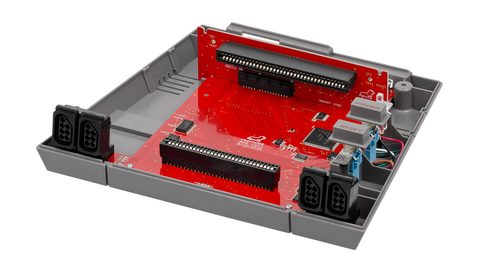
詳解OSSC開源掃描轉換器的倍線模式與採樣相位設定,涵蓋從訊號鎖定到輸出模式選擇的完整調校流程,並提供電視兼容性問題的解決方案。
OSSC setup guide
詳解OSSC開源掃描轉換器的倍線模式與採樣相位設定,涵蓋從訊號鎖定到輸出模式選擇的完整調校流程,並提供電視兼容性問題的解決方案。
-
 OSSC vs RetroTINK 5X
從輸入延遲、電視兼容性與480i去交錯處理三個面向,深入對比OSSC線性倍線與RetroTINK 5X-Pro幀緩衝兩種架構的核心差異與適用場景。
OSSC vs RetroTINK 5X
從輸入延遲、電視兼容性與480i去交錯處理三個面向,深入對比OSSC線性倍線與RetroTINK 5X-Pro幀緩衝兩種架構的核心差異與適用場景。
-
 RetroTINK 4K
詳解RetroTINK 4K如何透過螢光粉排列模擬遮罩與HDR注入功能,在4K屏幕上精細重現經典CRT螢幕的獨特視覺質感。
RetroTINK 4K
詳解RetroTINK 4K如何透過螢光粉排列模擬遮罩與HDR注入功能,在4K屏幕上精細重現經典CRT螢幕的獨特視覺質感。
-
 RetroTINK 5X Pro
探討RetroTINK 5X-Pro的最佳時序設定,從像素時鐘微調到去交錯模式選擇,說明如何為各款舊主機實現精準畫面還原與流暢體驗。
RetroTINK 5X Pro
探討RetroTINK 5X-Pro的最佳時序設定,從像素時鐘微調到去交錯模式選擇,說明如何為各款舊主機實現精準畫面還原與流暢體驗。
-
 Sync-on-luma, sync-on-composite and sync strippers explained
深入解釋Sync-on-Luma、Sync-on-Composite與Clean Sync三種RGB同步訊號的差異,以及在不同主機與升頻器上的兼容性表現與選擇依據。
Sync-on-luma, sync-on-composite and sync strippers explained
深入解釋Sync-on-Luma、Sync-on-Composite與Clean Sync三種RGB同步訊號的差異,以及在不同主機與升頻器上的兼容性表現與選擇依據。
-
 Why some TVs reject line-multiplied signals, and how to fix it
分析現代電視拒絕接收升頻器倍線訊號的原因,並提供從設定調整到硬體緩衝的多種HDMI兼容性問題解決方案。
Why some TVs reject line-multiplied signals, and how to fix it
分析現代電視拒絕接收升頻器倍線訊號的原因,並提供從設定調整到硬體緩衝的多種HDMI兼容性問題解決方案。
Common Questions
Which scaler adds the least input lag?
The OSSC and OSSC Pro add microseconds of lag because they have no framebuffer. The RetroTINK 4K and 5X-Pro add less than 1 ms when framebuffer mode is off. The GBS-Control adds one to two frames (16 to 33 ms). The mClassic adds 1 to 2 ms. The TV itself adds 10 to 40 ms depending on Game Mode settings.
Can I use an mClassic with a PlayStation 2?
Only if the PlayStation 2 is connected to an external HDMI converter first. The mClassic expects a digital 1080p input. A RetroTINK 5X-Pro or OSSC Pro converting the PS2's component or RGB output to 1080p, followed by the mClassic, works. Direct connection from a PS2 to the mClassic via a cheap HDMI converter will introduce lag and artifacts from the converter's poor deinterlacing.
Why does my SNES cause the screen to go black during bright flashes?
The SNES sync signal dips in voltage during full-white frames. The OSSC's default sync threshold is too tight for this dip. Enable the Sync LPF and set Sync Threshold to Low in the OSSC's Sync menu. On the RetroTINK 5X-Pro, enable the Analog Sync filter in the Input menu. On the GBS-Control, adjust the sync threshold in the web interface.
What is the difference between line multiplication and framebuffer scaling?
Line multiplication repeats each input line exactly, with no processing and no frame buffer. It adds microseconds of lag. Framebuffer scaling captures a full frame into memory, resamples it to a different resolution, and outputs it. It adds at least one frame of latency if the buffer is active. Line multiplication cannot do non-integer scales; framebuffer scaling can. Line multiplication cannot apply CRT filters that require pixel-level processing; framebuffer scaling can.
Do I need a separate audio extractor for capture?
The RetroTINK 4K and 5X-Pro embed analogue audio from the SCART or RCA inputs into the HDMI output. The OSSC and OSSC Pro do not embed audio from the SCART input; you need a separate audio extractor or a DAC for capture setups. The GBS-Control passes through audio from the VGA input only if you use an add-on HDMI board with audio support. The mClassic passes through HDMI audio unchanged.
What is the 240p test suite and why do I need it?
The 240p test suite is a homebrew ROM by Artemio Urbina that generates test patterns for lag, geometry, colour accuracy, and deinterlacing verification. It runs on Dreamcast, Genesis, Saturn, SNES, NES, PlayStation 1 and 2, GameCube, Wii, PC Engine, Neo Geo, and other platforms. Use the lag test pattern with a photodiode sensor or the Time Sleuth to measure total system lag. Use the grid pattern to check for uneven pixel sizes. Use the interlace pattern to confirm your scaler correctly identifies 240p versus 480i.
Should I buy a RetroTINK 4K now or wait for a cheaper version?
The RetroTINK 4K is the ceiling of the market at 4K output with HDR CRT emulation. If you own a 4K OLED and play a wide range of consoles, it is the only scaler that outputs native 4K at sub-millisecond latency. If you own a 1080p or 1440p screen, the RetroTINK 5X-Pro covers the same input range at half the price. Mike Chi has not announced a lower-cost 4K model as of 2026.
Read next
-
RetroTINK 4K
詳解RetroTINK 4K如何透過螢光粉排列模擬遮罩與HDR注入功能,在4K屏幕上精細重現經典CRT螢幕的獨特視覺質感。
-
Chaining a scaler with an mClassic
分析將OSSC或RetroTINK的整數倍縮放輸出再經mClassic後處理的訊號鏈疊加效果,包括延遲累加幅度與對2D及3D遊戲畫質的實際影響。
-
Morph 4K
分析Morph 4K升頻器的功能設定與效能表現,探討其作為RetroTINK 4K替代方案在CRT模擬與輸入兼容性上的定位。
-
Why some TVs reject line-multiplied signals, and how to fix it
分析現代電視拒絕接收升頻器倍線訊號的原因,並提供從設定調整到硬體緩衝的多種HDMI兼容性問題解決方案。
-
Firmware updates for OSSC and RetroTINK (verified procedures)
-
RetroTINK 5X Pro
探討RetroTINK 5X-Pro的最佳時序設定,從像素時鐘微調到去交錯模式選擇,說明如何為各款舊主機實現精準畫面還原與流暢體驗。